
python通过tkinter制作词云图工具
一、基本功能
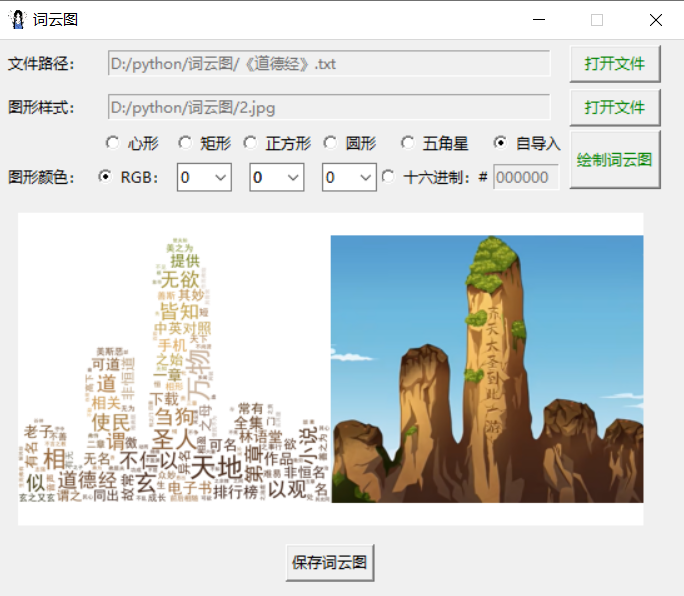
1.采取上传文本文档(仅支持.txt格式)的方式统计词频
2.背景图形样式可选择已经设定好的,也可选择本地上传的(支持.png .jpg .jpeg格式)
3.本地上传的图片需要进行抠图处理,并将抠图结果保存到本地
4.背景图形颜色可通过调节RGB值和十六进制颜色值的方式进行设置
5.绘制好的词云图可供预览,并且可保存到本地
二、python程序
import re
import io
import jieba
import rembg
import numpy as np
import pandas as pd
import tkinter as tk
from tkinter.filedialog import *
from tkinter.ttk import *
from PIL import Image
from wordcloud import WordCloud
from wordcloud import ImageColorGenerator
from matplotlib import pyplot as plt
from matplotlib import patches as mp
from matplotlib.path import Path
from matplotlib.backends.backend_tkagg import FigureCanvasTkAggdef openfile():global file_path, path1file_path = askopenfilename(title='打开文本文档:', filetypes=[('Text Files', '*.txt')])path1.set(file_path)print(path1.get())return path1def openbackground():global background_path, path2background_path = askopenfilename(title='打开图片文件:', filetypes=[('Picture Files', '*.png *.jpg *.jpeg')])path2.set(background_path)print(path2.get())return path2def input_own_bg():button_bg.config(state=tk.NORMAL)def input_basic_graphic_bg():button_bg.config(state=tk.DISABLED)def input_rgb():combobox_r.config(state=tk.NORMAL)combobox_g.config(state=tk.NORMAL)combobox_b.config(state=tk.NORMAL)entry3.config(state=tk.DISABLED)def input_hex():combobox_r.config(state=tk.DISABLED)combobox_g.config(state=tk.DISABLED)combobox_b.config(state=tk.DISABLED)entry3.config(state=tk.NORMAL)def background():if choice_color.get() == 1:hex_r = hex(r.get())[2:].upper()hex_g = hex(g.get())[2:].upper()hex_b = hex(b.get())[2:].upper()hex_r0 = hex_r.zfill(2)hex_g0 = hex_g.zfill(2)hex_b0 = hex_b.zfill(2)hexcolor = '#' + hex_r0 + hex_g0 + hex_b0else:hexcolor = '#' + hex_color.get()plt.close(fig=None)fig_bg = plt.figure(figsize=(5, 5))ax = fig_bg.add_subplot(111, facecolor='white')if choice_shape.get() == 1:  # 心形t = np.arange(-3, 3, 0.1)x = 18 * np.power(np.sin(t), 3)y = 16 * np.cos(t) - 4 * np.cos(2 * t) - 3 * np.cos(3 * t) - np.cos(4 * t)shape = plt.fill(x, y, hexcolor)[0]ax.add_patch(shape)plt.axis('equal')plt.axis('off')elif choice_shape.get() == 2:  # 矩形shape = mp.Rectangle(xy=(0.1, 0.2), width=0.8, height=0.6, color=hexcolor)ax.add_patch(shape)plt.axis('off')elif choice_shape.get() == 3:  # 正方形shape = mp.Rectangle(xy=(0, 0), width=1, height=1, color=hexcolor)ax.add_patch(shape)plt.axis('off')elif choice_shape.get() == 4:  # 圆形shape = mp.Circle(xy=(0.5, 0.5), radius=0.5, alpha=0.8, color=hexcolor)ax.add_patch(shape)plt.axis('off')elif choice_shape.get() == 5:  # 五角星verts = []for i in [0, 3, 1, 4, 2, 0]:verts.append((np.sin(2 * np.pi / 5 * i), np.cos(2 * np.pi / 5 * i)))codes = [Path.MOVETO, Path.LINETO, Path.LINETO, Path.LINETO, Path.LINETO, Path.CLOSEPOLY]path = Path(verts, codes)shape = mp.PathPatch(path, facecolor=hexcolor, lw=0, alpha=1)ax.add_patch(shape)plt.axis('equal')plt.axis('off')else:  # 自导入return background_pathbuffer = io.BytesIO()# if hexcolor=='#FFFFFF':#     fig_bg.patch.set_facecolor('black')canvas_bg = fig_bg.canvascanvas_bg.print_png(buffer)data = buffer.getvalue()buffer.write(data)plt.close(fig=None)return bufferdef check(event):if path1.get() and len(hex_color.get()) == 6:button_draw.config(state=tk.NORMAL, fg='green')else:button_draw.config(state=tk.DISABLED, fg='red')def check_hex(hex_input):hex_characters = '0123456789abcdefABCDEF'if len(hex_input) <= 6 and all(char in hex_characters for char in hex_input):return Trueelse:return Falsedef wordcloud():global button_savetext = pd.read_csv(file_path, index_col=0, encoding='utf-8', sep='\t')text2 = str(text)text3 = re.sub("[a-zA-Z0-9'!""#$%&\'()*+,-./:;<=>?@,。?★、…【】《》:?“”‘'![\\]^_`{|}~\s]+", "", text2)text4 = jieba.lcut(text3)text5 = ' '.join(text4)stop_words = set()content = [line.strip() for line in open('stopwords.txt', 'r', encoding='utf-8').readlines()]stop_words.update(content)font = r'C:\Windows\Fonts\simhei.ttf'img = Image.open(background())img_remove = rembg.remove(img, alpha_matting=True, bgcolor=(255, 255, 255, 1))img_remove.save('background_remove.png')MASK = np.array(img_remove)img_col = ImageColorGenerator(MASK)plt.close(fig=None)fig = plt.figure(figsize=(5, 2.5))plt.subplot(121)wordcloud = WordCloud(background_color='white', scale=2, max_words=500, max_font_size=50, min_font_size=1, font_path=font, stopwords=stop_words, mask=MASK, mode='RGB').generate_from_text(text5)plt.imshow(wordcloud.recolor(color_func=img_col), alpha=1)plt.axis('off')plt.subplot(122)plt.imshow(img)plt.axis('off')plt.subplots_adjust(top=1, bottom=0, right=1, left=0, hspace=0, wspace=0)plt.margins(0, 0)canvas = FigureCanvasTkAgg(figure=fig, master=windows)canvas.draw()canvas.get_tk_widget().grid(row=4, column=0, rowspan=1, columnspan=8, padx=0, pady=15)button_save = tk.Button(windows, text='保存词云图', command=show)button_save.grid(row=5, column=0, rowspan=1, columnspan=8)def show():plt.show()button_save.config(state=tk.DISABLED)if __name__ == '__main__':windows = tk.Tk()windows.geometry('550x450+500+200')windows.resizable(width=False, height=False)windows.title('词云图')windows.iconbitmap('image.ico')path1 = tk.StringVar()tk.Label(windows, text='文件路径:').grid(row=0, column=0, pady=5, padx=2)entry1 = tk.Entry(windows, textvariable=path1, width=50, state=tk.DISABLED)entry1.grid(row=0, column=1, rowspan=1, columnspan=6, pady=5)tk.Button(windows, text='打开文件', command=openfile, fg='green', width=9).grid(row=0, column=7, pady=5, padx=2)choice_shape = tk.IntVar()choice_shape.set(1)tk.Label(windows, text='图形样式:').grid(row=1, column=0, padx=2)button_bg = tk.Button(windows, text='打开文件', command=openbackground, fg='green', width=9, state=tk.DISABLED)button_bg.grid(row=1, column=7, padx=2)path2 = tk.StringVar()entry2 = tk.Entry(windows, textvariable=path2, width=50, state=tk.DISABLED)entry2.grid(row=1, column=1, rowspan=1, columnspan=6)tk.Radiobutton(windows, text='心形', value=1, variable=choice_shape, justify=tk.LEFT, command=input_basic_graphic_bg).grid(row=2, column=1)tk.Radiobutton(windows, text='矩形', value=2, variable=choice_shape, justify=tk.LEFT, command=input_basic_graphic_bg).grid(row=2, column=2)tk.Radiobutton(windows, text='正方形', value=3, variable=choice_shape, justify=tk.LEFT, command=input_basic_graphic_bg).grid(row=2, column=3)tk.Radiobutton(windows, text='圆形', value=4, variable=choice_shape, justify=tk.LEFT, command=input_basic_graphic_bg).grid(row=2, column=4)tk.Radiobutton(windows, text='五角星', value=5, variable=choice_shape, justify=tk.LEFT, command=input_basic_graphic_bg).grid(row=2, column=5)tk.Radiobutton(windows, text='自导入', value=6, variable=choice_shape, justify=tk.LEFT, command=input_own_bg).grid(row=2, column=6)choice_color = tk.IntVar()choice_color.set(1)tk.Label(windows, text='图形颜色:').grid(row=3, column=0, padx=5)tk.Radiobutton(windows, text='RGB:', value=1, variable=choice_color, justify=tk.LEFT, width=5, command=input_rgb, state=tk.NORMAL).grid(row=3, column=1)r = tk.IntVar()combobox_r = Combobox(windows, textvariable=r, width=3)combobox_r['value'] = tuple(range(256))combobox_r.set(0)combobox_r.grid(row=3, column=2)g = tk.IntVar()combobox_g = Combobox(windows, textvariable=g, width=3)combobox_g['value'] = tuple(range(256))combobox_g.set(0)combobox_g.grid(row=3, column=3)b = tk.IntVar()combobox_b = Combobox(windows, textvariable=b, width=3)combobox_b['value'] = tuple(range(256))combobox_b.set(0)combobox_b.grid(row=3, column=4)tk.Radiobutton(windows, text='十六进制:#', value=2, variable=choice_color, justify=tk.LEFT, width=8, command=input_hex).grid(row=3, column=5)hex_color = tk.StringVar()entry3 = tk.Entry(windows, textvariable=hex_color, validate='key', validatecommand=(windows.register(check_hex), '%P'), width=7, state=tk.DISABLED)hex_color.set('000000')entry3.grid(row=3, column=6)button_draw = tk.Button(windows, text='绘制词云图', command=wordcloud, fg='red', width=9, height=2, state=tk.DISABLED)button_draw.bind('<Motion>', check)button_draw.grid(row=2, column=7, rowspan=2, columnspan=1, padx=2)windows.mainloop()
三、效果展示
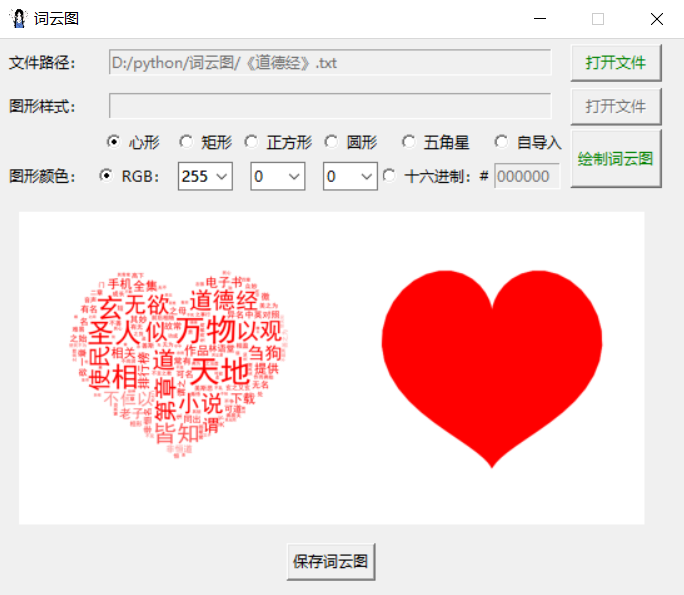
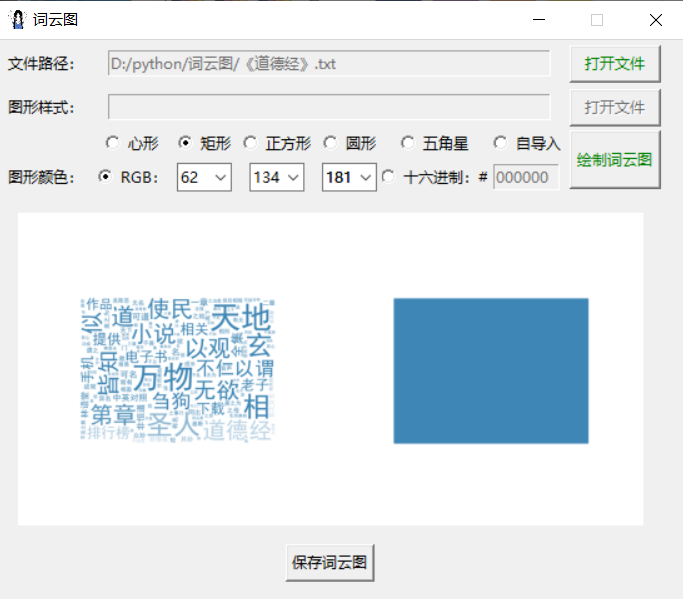
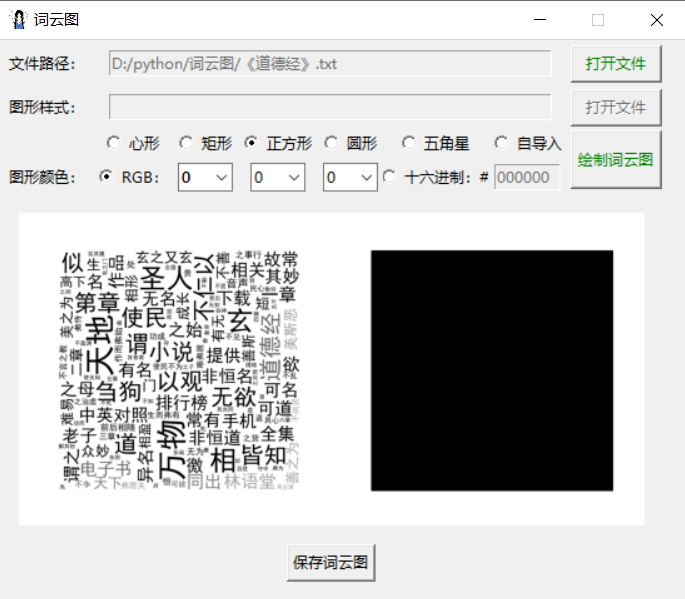
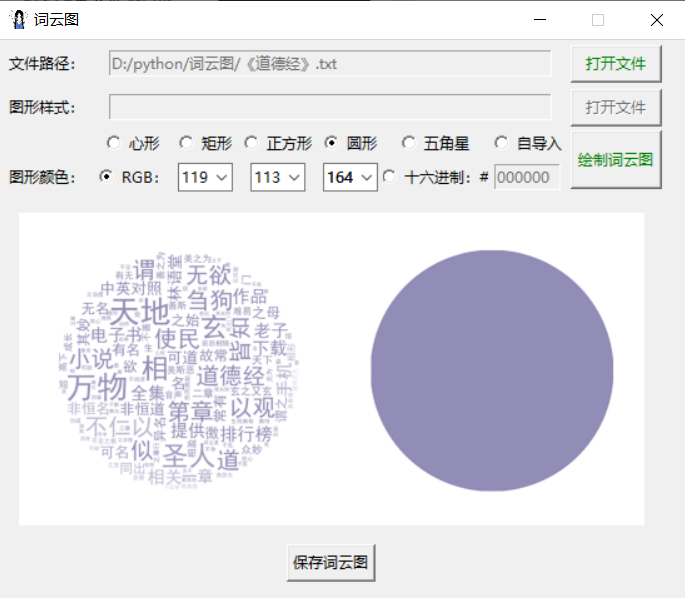
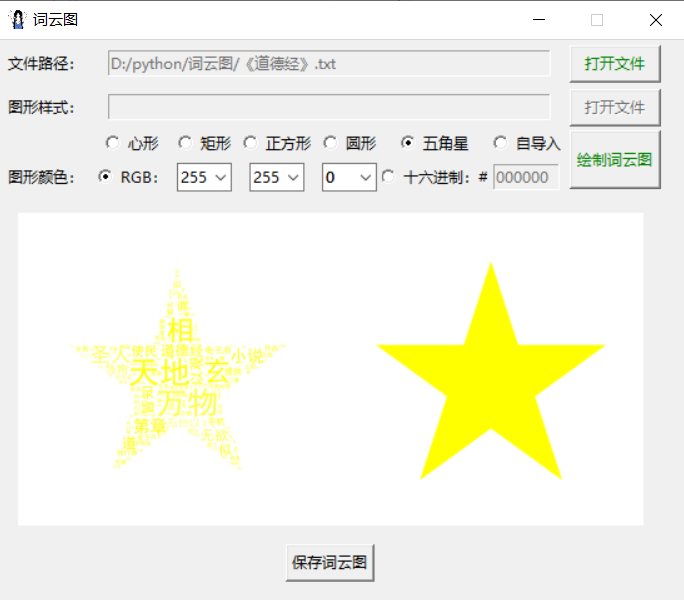
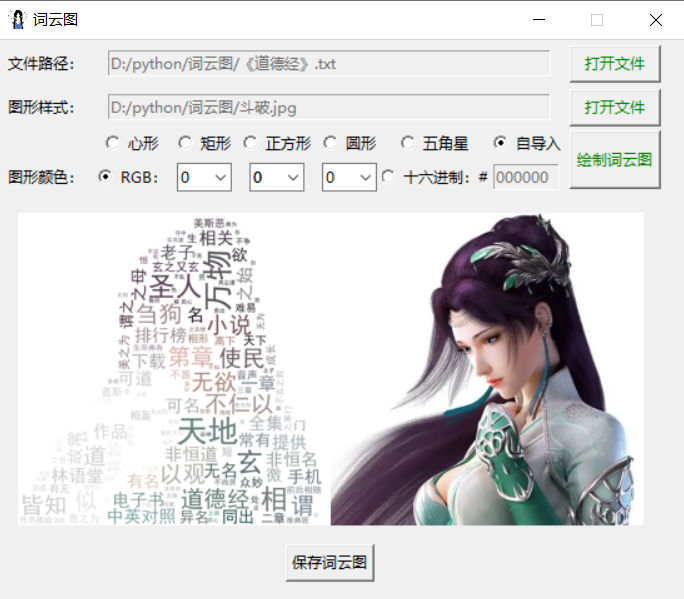
python通过tkinter制作词云图工具
四、源代码下载(含虚拟环境)
词云图工具下载链接:
https://url86.ctfile.com/f/32005086-932012628-2a8f6b?p=5422
访问密码:5422
相关文章:
python通过tkinter制作词云图工具
一、基本功能 1.采取上传文本文档(仅支持.txt格式)的方式统计词频 2.背景图形样式可选择已经设定好的,也可选择本地上传的(支持.png .jpg .jpeg格式) 3.本地上传的图片需要进行抠图处理,并将抠图结果保存…...
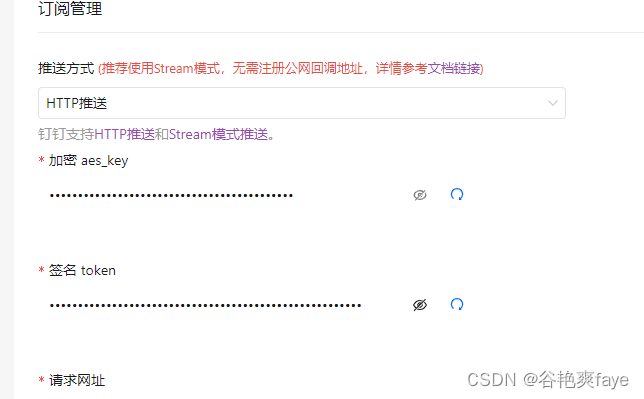
Java-钉钉订阅事件
文章目录 背景什么是钉钉订阅事件钉钉订阅事件的应用场景 整体思路查看钉钉文档 什么是钉钉回调钉钉回调具体实操创建自己的应用钉钉回调开发过程中遇到的问题 总结 背景 最近需要做一个业务:钉钉组织架构下添加人员之后,要对该人员的数据信息做一个处理…...
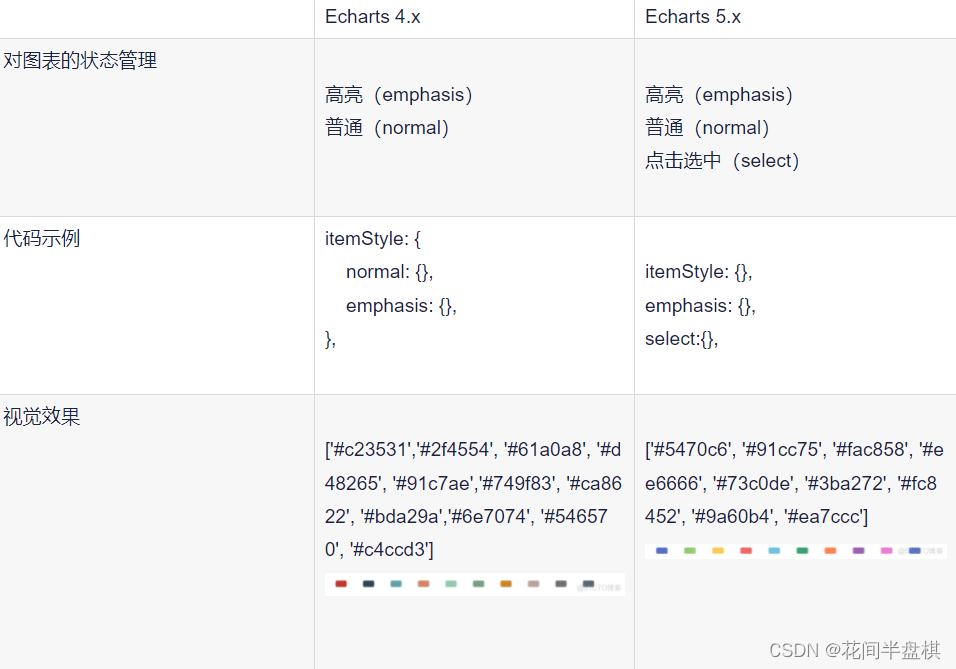
【DataV/echarts】vue中使用,修改地图和鼠标点击部分的背景色
引入:使用 DataV 引入地图的教程是参考别人的,主要介绍修改地图相关的样式; 引入地图 是参考别人的,这里自己再整理一遍,注意需要安装 5 版本以上的 echarts; DataV 网址:https://datav.aliyun.…...

系统设计类题目汇总四
25 十个异步入库任务,如何保证他们原子入库? 了解了你的问题背景,确保10个异步入库任务原子性执行(即要么全部成功,要么全部失败)有以下几种方法: 数据库事务: 如果所有的入库操作都是在同一个…...
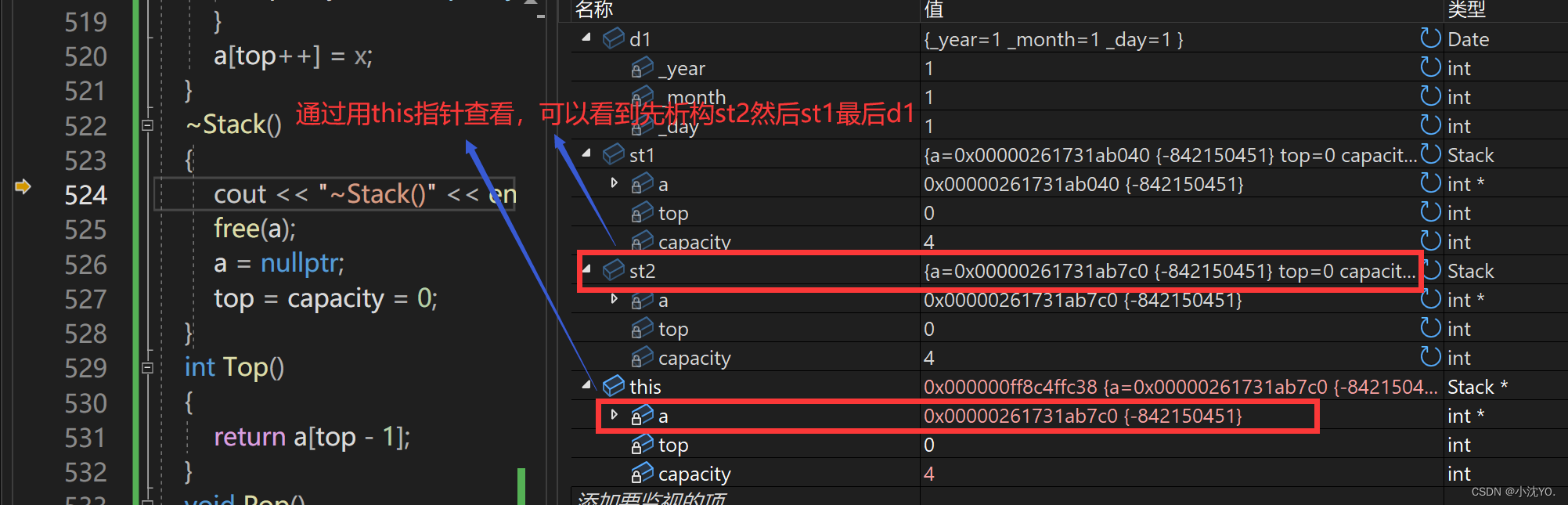
【C++心愿便利店】No.5---构造函数和析构函数
文章目录 前言一、类的6个默认成员函数二、构造函数三、析构函数 前言 👧个人主页:小沈YO. 😚小编介绍:欢迎来到我的乱七八糟小星球🌝 📋专栏:C 心愿便利店 🔑本章内容:类…...
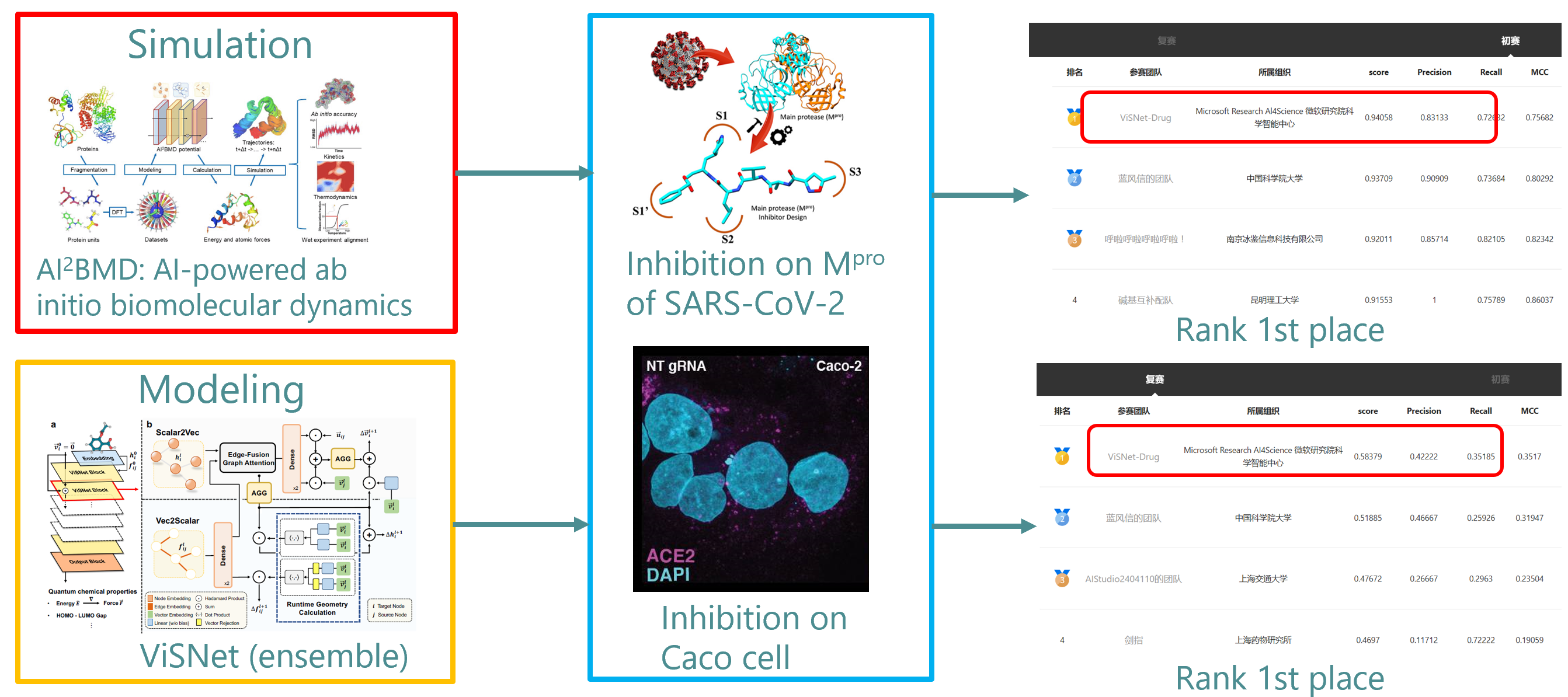
微软研究院团队获得首届AI药物研发算法大赛总冠军
编者按:AI 药物研发是人工智能未来应用的重要方向之一。自新冠病毒(SARS-CoV-2)首次爆发以来,新冠病毒的小分子药物研发备受关注,于近期举行的首届 AI 药物研发算法大赛便聚焦于此。在比赛中,来自微软研究院…...

redis实战篇之导入黑马点评项目
1. 搭建黑马点评项目 链接:https://pan.baidu.com/s/1Q0AAlb4jM-5Fc0H_RYUX-A?pwd6666 提取码:6666 1.1 首先,导入SQL文件 其中的表有: tb_user:用户表 tb_user_info:用户详情表 tb_shop:商户…...
【C++】详解红黑树并模拟实现
前言: 上篇文章我们一起学习了AVL树比模拟实现,我们发现AVL树成功地把时间复杂度降低到了O(logN)。但是同时我们不难发现一个问题,在构建AVL树中我们也付出了不小的代价,频繁的旋转操作导致效率变低。为了解决这个问题,…...
Matlab图像处理-最大类间方差阈值选择法(Otsu)
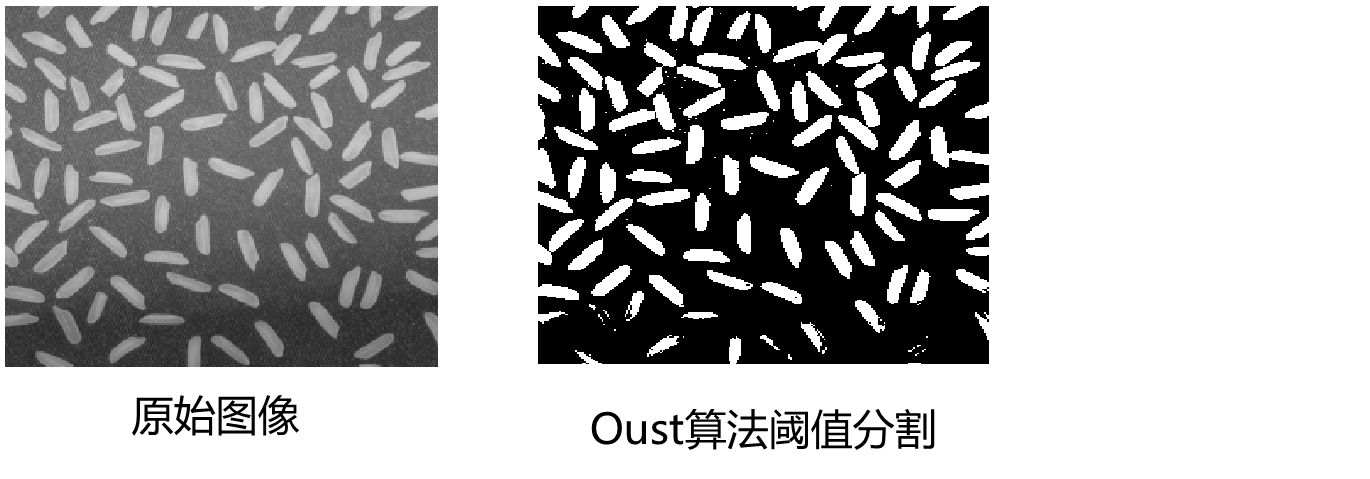
基本思想 最大类间方差阈值选择法又称为Otsu 算法,该算法是在灰度直方图的基础上用最小二乘法原理推导出来的,具有统计意义上的最佳分割阈值。它的基本原理是以最佳阈值将图像的灰度直方图分割成两部分,使两部分之间的方差取得最大值&#x…...
系列教程(三) 服务消费者(Feign))
Spring Cloud(Finchley版本)系列教程(三) 服务消费者(Feign)
Spring Cloud(Finchley版本)系列教程(三) 服务消费者(Feign) 一、Feign和OpenFeign的对比 Feign是Netflix公司写的,是SpringCloud组件中的一个轻量级RESTful的HTTP服务客户端,是SpringCloud中的第一代负载均衡客户端。OpenFeign是SpringCloud自己研发的,在Feign的基础上支…...

AI图片生成 discord 使用midjourney
参考: 不用找咒语了!Midjourney图生文功能特征解析,玩转Describe命令,快速搞定AI绘画_哔哩哔哩_bilibili 1 登录 discord 2 点发现 找 midjourney 3 创建 服务器 -> 亲自创建 4 选 仅供我和我的朋友使用 5 起个 服务器名字 6 加bot 由于…...
gitlab 点击Integrations出现500错误
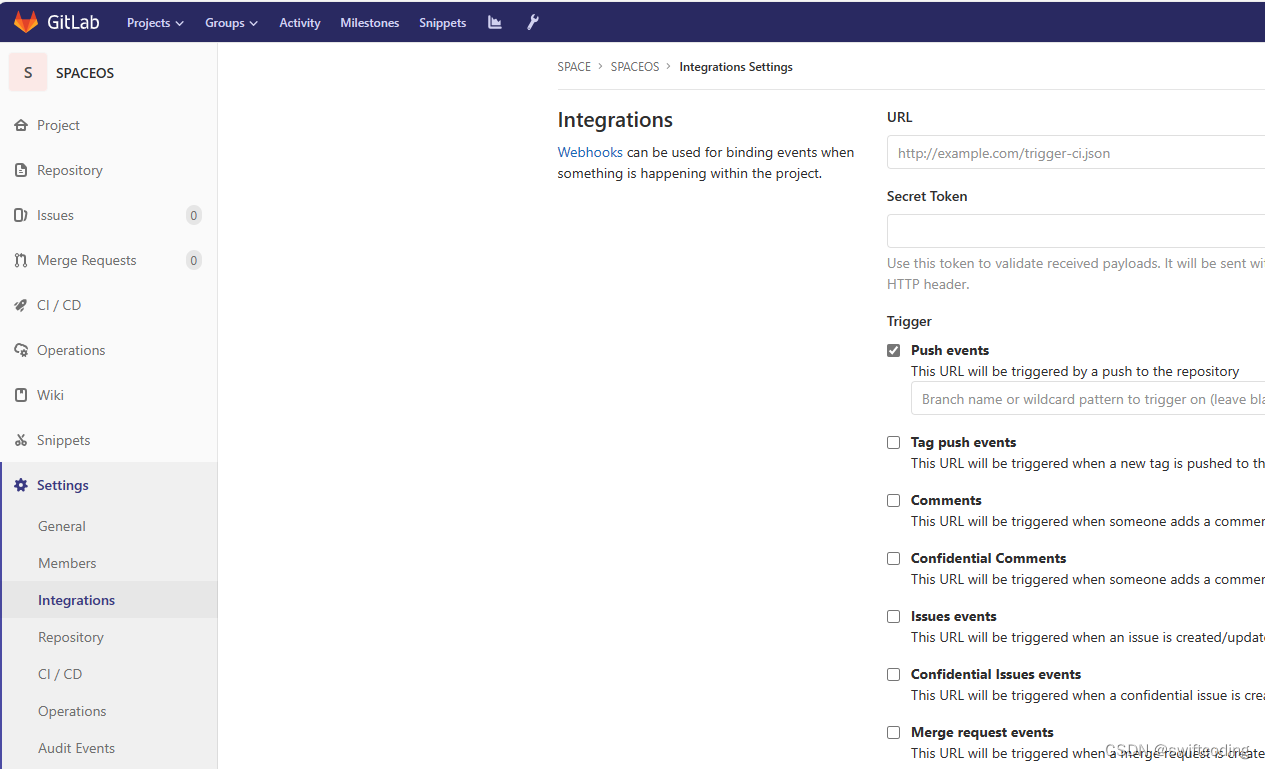
背景:在新服务器重新搭建了gitlab,并导入原来gitlab的备份,在项目中点击点击Integrations出现500错误。 解决方法:1.进入新服务器,将 /etc/gitlab/gitlab-secrets.json重命名为 /etc/gitlab/gitlab-secrets.json.bak …...
【2023高教社杯】A题 定日镜场的优化设计 问题分析及数学模型
【2023高教社杯】A题 定日镜场的优化设计 问题分析及数学模型 1 题目 构建以新能源为主体的新型电力系统,是我国实现“碳达峰”“碳中和”目标的一项重要措施。塔式太阳能光热发电是一种低碳环保的新型清洁能源技术[1]。 定日镜是塔式太阳能光热发电站(…...
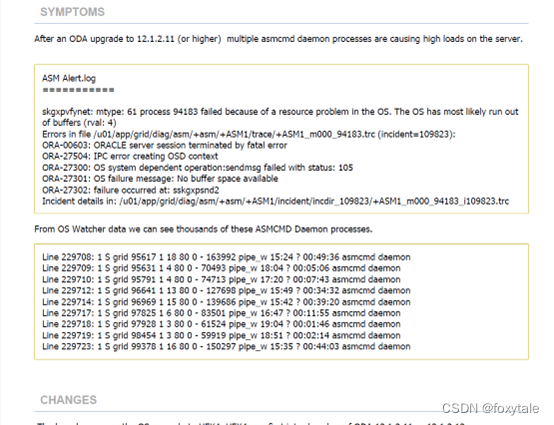
rac异常hang死故障分析(sskgxpsnd2)
x86虚拟化的平台麒麟系统的一套RAC。事件梳理20:24左右,发现一个节点hang死,关闭操作没有响应。关闭hang死节点,另一个节点也发生hang死,然后重启了另一个节点。 无效分析部分 检查gi的alert日志 有一个很大跨度的时间回退 再看…...
2023.9.7 关于 TCP / IP 的基本认知
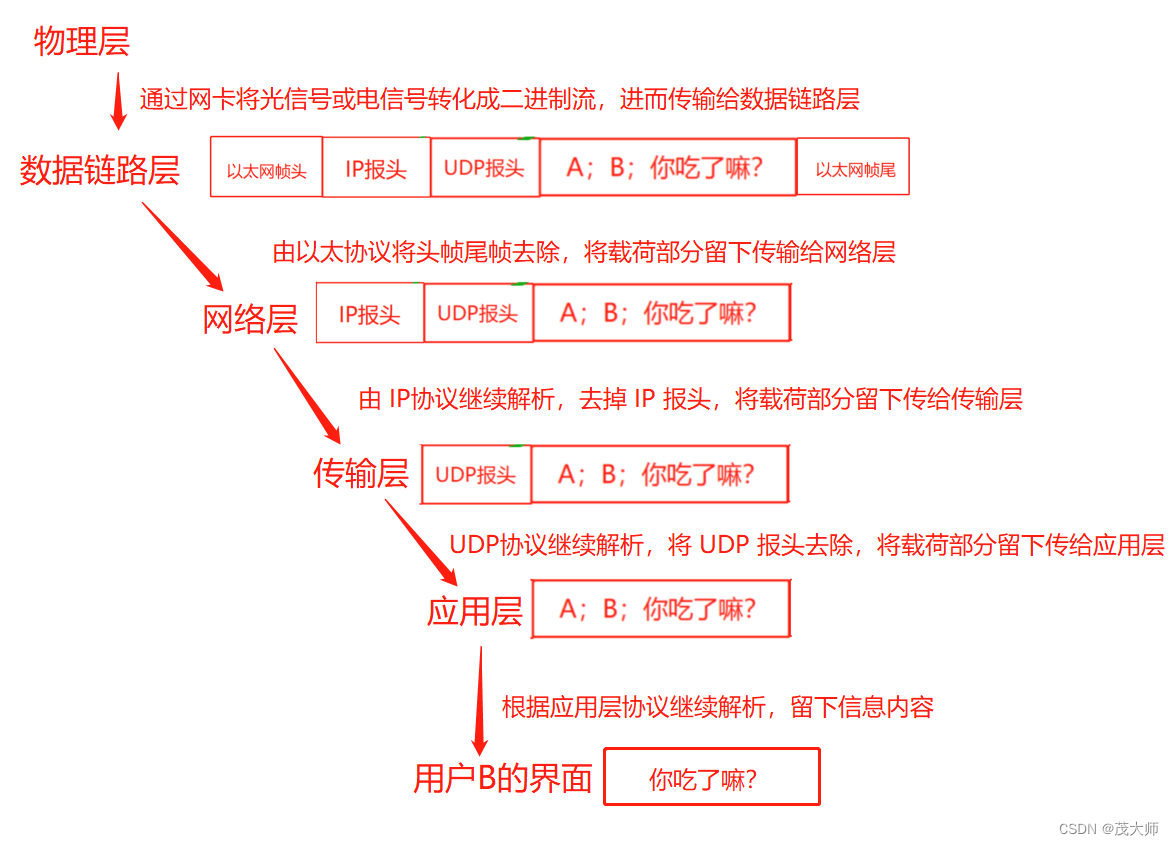
目录 网络协议分层 TCP/IP 五层(四层)模型 应用层 传输层 网络层(互联网层) 数据链路层(网络接口层) 物理层 网络数据传输的基本流程 网络协议分层 为什么需要分层? 分层之后,…...

Python 图片处理
Step1 提取PDF中的图片,并另存 Step2 去除灰色纸张背景 import PyPDF2 from PIL import ImageEnhance,Image,ImageFilter import cv2 import numpy as np from skimage.filters import unsharp_mask from skimage.filters import gaussian from skimage.restora…...

信道估计 | 信道
文章目录 定义分类LS 估计MMSE估计LS vs MMSE 定义 从接收数据中将假定的某个信道模型参数估计出来的过程,如果信道是线性的,信道估计是对系统的冲击响应进行估计,需强调的是,信道估计是信道对输入信号影响的一种数学表示&#x…...
腾讯发布超千亿参数规模的混元大模型;深度学习与音乐分析与生成课程介绍
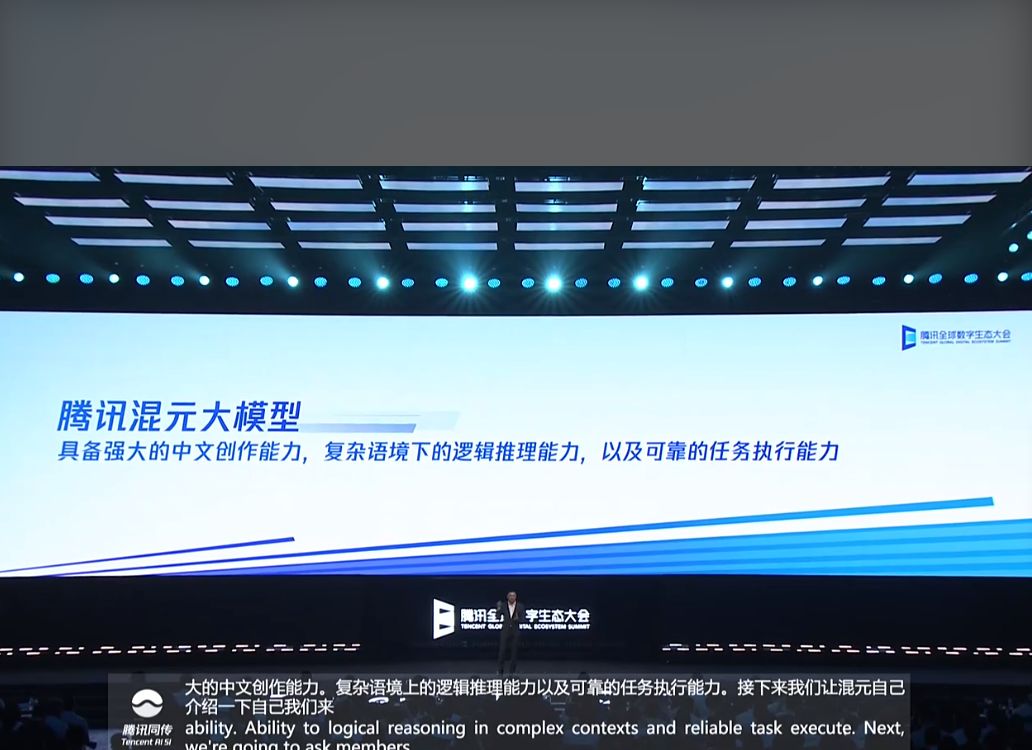
🦉 AI新闻 🚀 腾讯发布超千亿参数规模的混元大模型 摘要:腾讯在2023腾讯全球数字生态大会上发布混元大模型,该模型拥有超千亿的参数规模和超2万亿 tokens 的预训练语料。混元大模型将支持多轮对话、内容创作、逻辑推理、知识增强…...
[html]当网站搭建、维护的时候,你会放个什么界面?
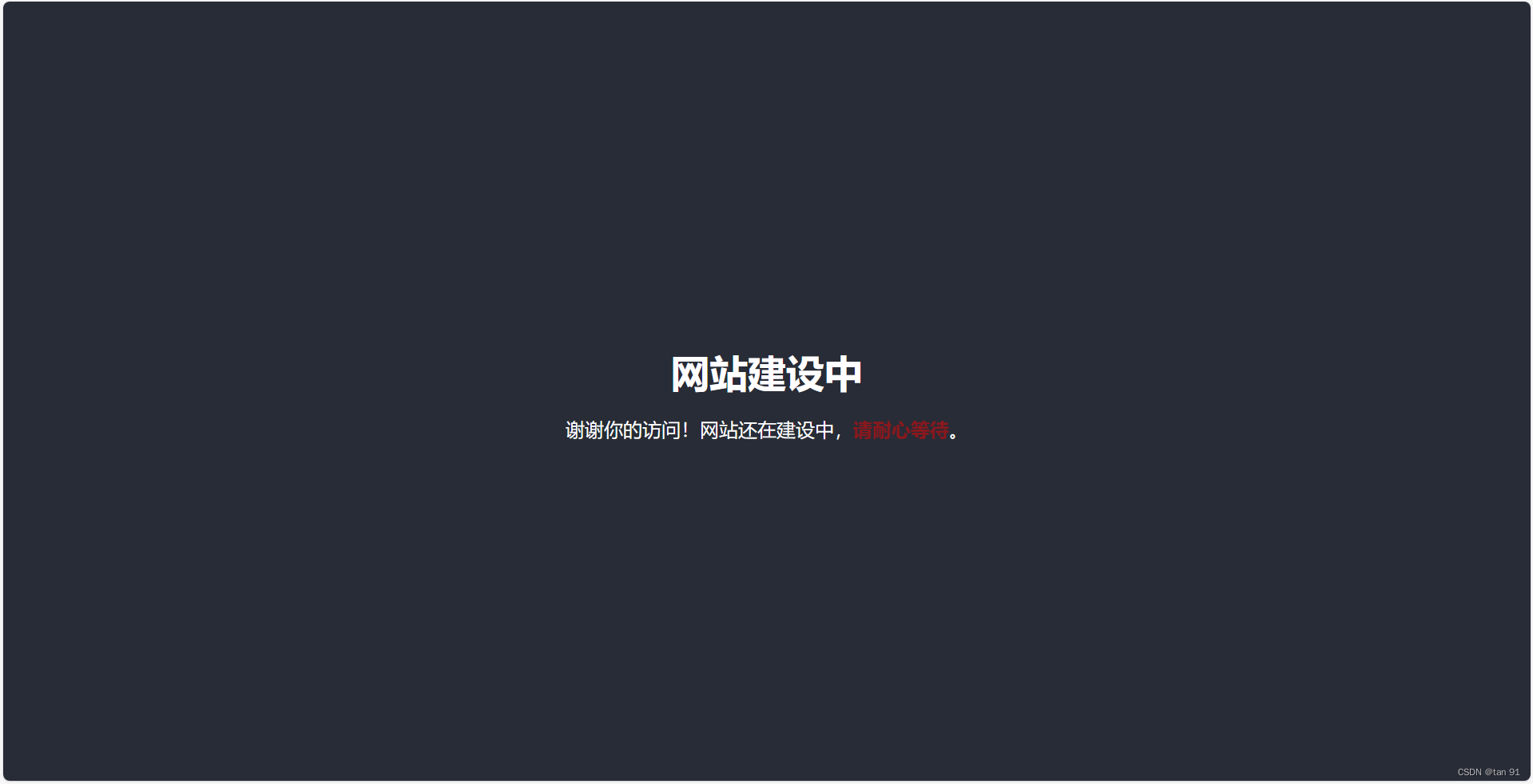
效果图: <!DOCTYPE html> <html lang"en"> <head><meta charset"UTF-8"><title>网站建设中</title><style>/* 基础样式 */body, html {margin: 0;padding: 0;height: 100%;font-family: Arial, sa…...
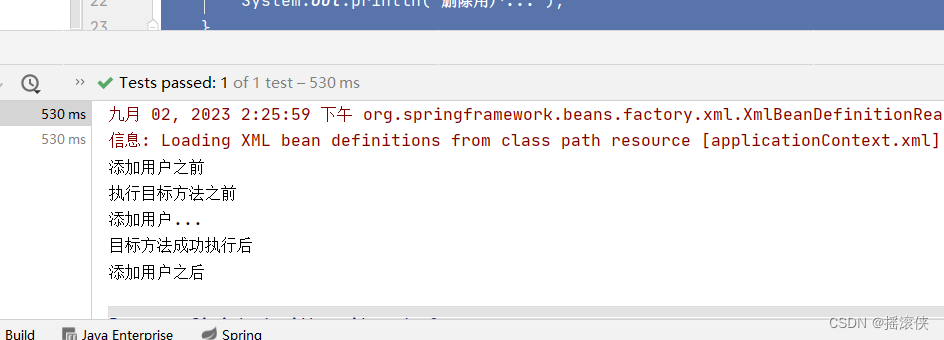
javaee spring aop 的五种通知方式
spring配置文件 <?xml version"1.0" encoding"UTF-8"?> <beans xmlns"http://www.springframework.org/schema/beans"xmlns:xsi"http://www.w3.org/2001/XMLSchema-instance" xmlns:aop"http://www.springframework.…...

<6>-MySQL表的增删查改
目录 一,create(创建表) 二,retrieve(查询表) 1,select列 2,where条件 三,update(更新表) 四,delete(删除表…...

基于服务器使用 apt 安装、配置 Nginx
🧾 一、查看可安装的 Nginx 版本 首先,你可以运行以下命令查看可用版本: apt-cache madison nginx-core输出示例: nginx-core | 1.18.0-6ubuntu14.6 | http://archive.ubuntu.com/ubuntu focal-updates/main amd64 Packages ng…...
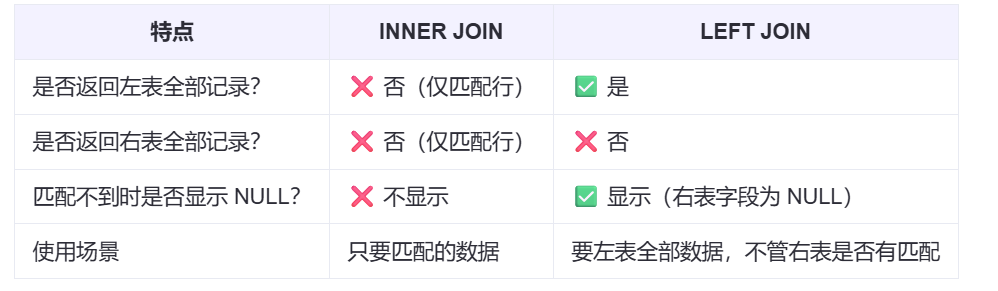
【SQL学习笔记1】增删改查+多表连接全解析(内附SQL免费在线练习工具)
可以使用Sqliteviz这个网站免费编写sql语句,它能够让用户直接在浏览器内练习SQL的语法,不需要安装任何软件。 链接如下: sqliteviz 注意: 在转写SQL语法时,关键字之间有一个特定的顺序,这个顺序会影响到…...
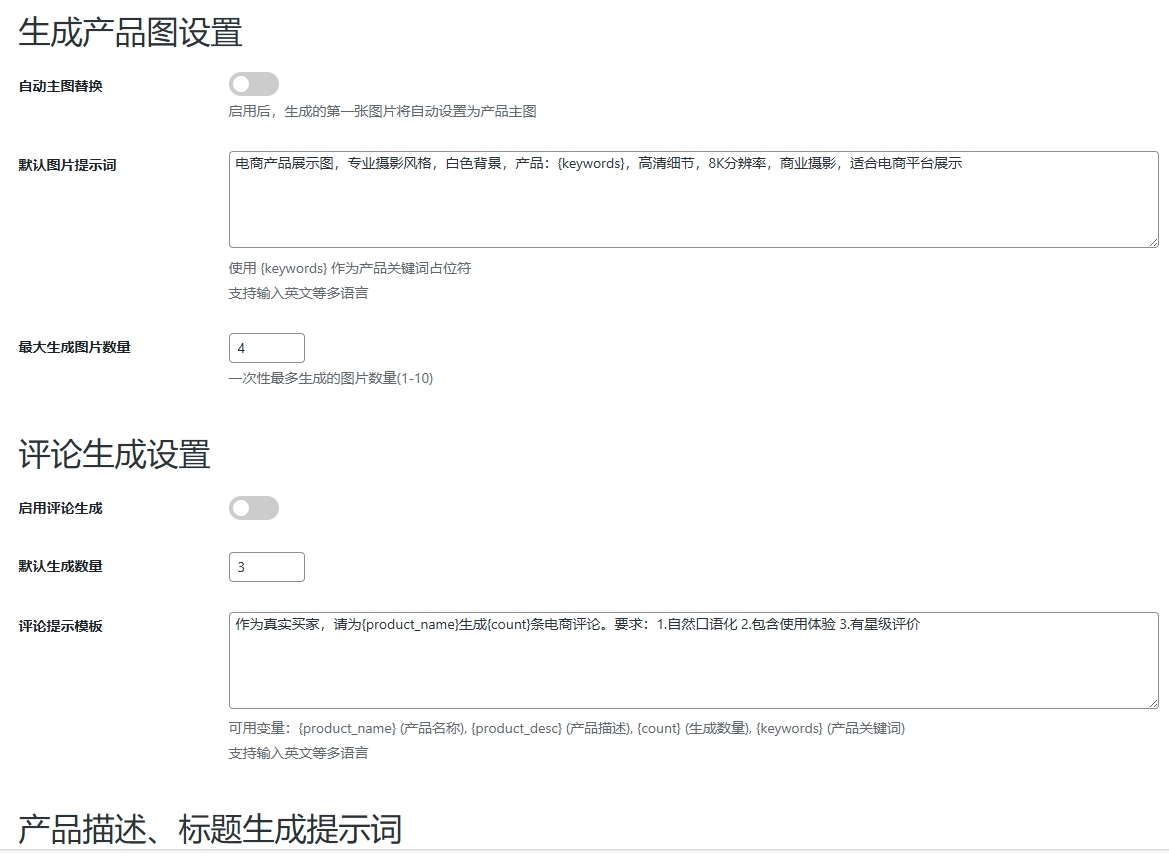
WordPress插件:AI多语言写作与智能配图、免费AI模型、SEO文章生成
厌倦手动写WordPress文章?AI自动生成,效率提升10倍! 支持多语言、自动配图、定时发布,让内容创作更轻松! AI内容生成 → 不想每天写文章?AI一键生成高质量内容!多语言支持 → 跨境电商必备&am…...
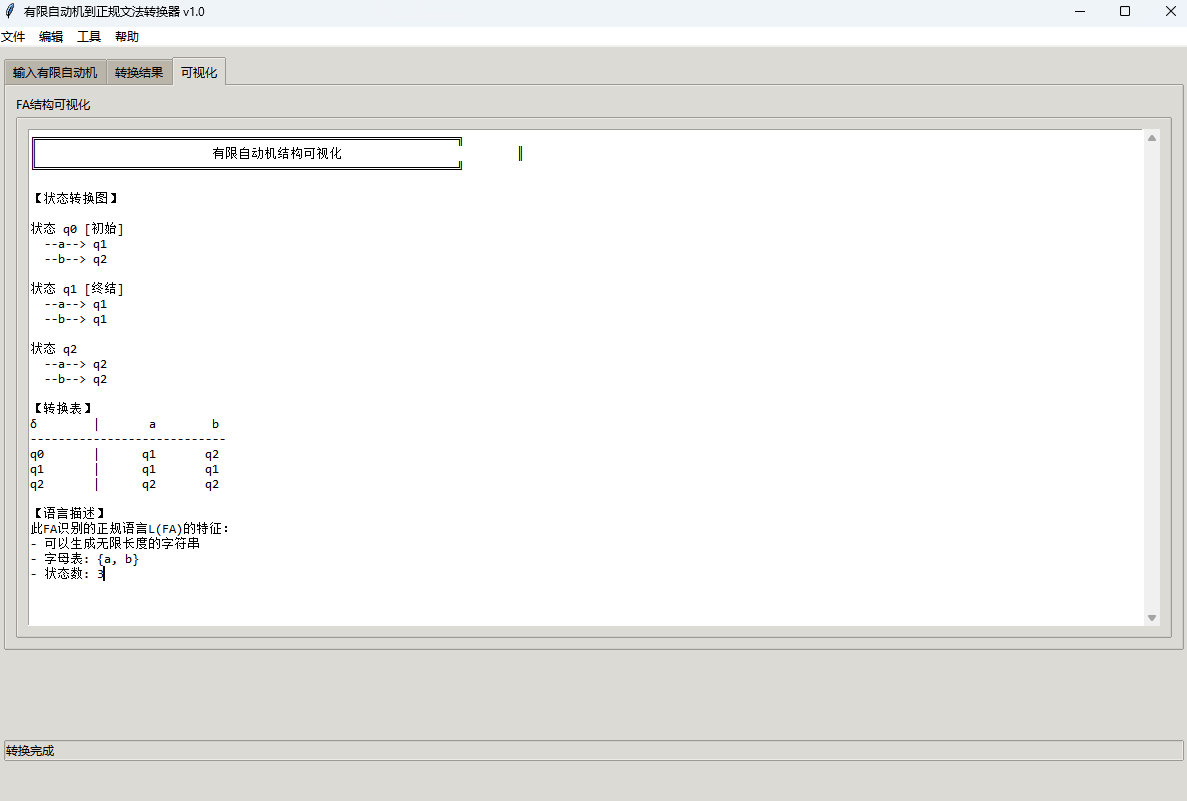
有限自动机到正规文法转换器v1.0
1 项目简介 这是一个功能强大的有限自动机(Finite Automaton, FA)到正规文法(Regular Grammar)转换器,它配备了一个直观且完整的图形用户界面,使用户能够轻松地进行操作和观察。该程序基于编译原理中的经典…...
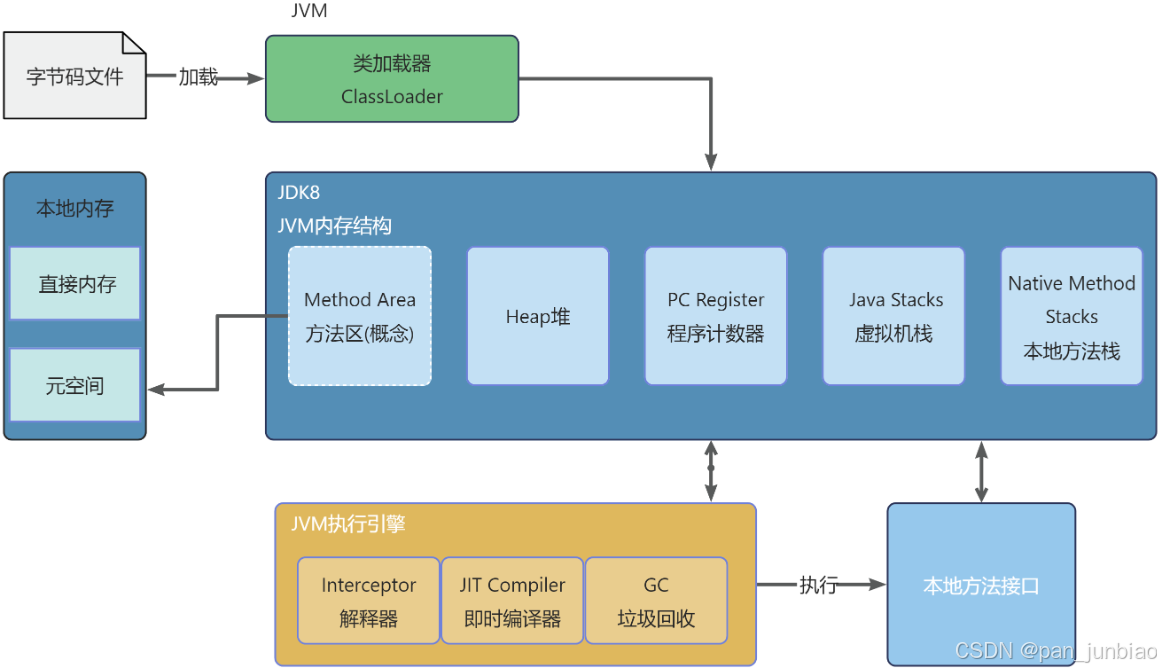
JVM虚拟机:内存结构、垃圾回收、性能优化
1、JVM虚拟机的简介 Java 虚拟机(Java Virtual Machine 简称:JVM)是运行所有 Java 程序的抽象计算机,是 Java 语言的运行环境,实现了 Java 程序的跨平台特性。JVM 屏蔽了与具体操作系统平台相关的信息,使得 Java 程序只需生成在 JVM 上运行的目标代码(字节码),就可以…...
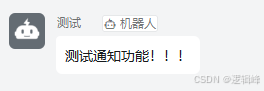
DingDing机器人群消息推送
文章目录 1 新建机器人2 API文档说明3 代码编写 1 新建机器人 点击群设置 下滑到群管理的机器人,点击进入 添加机器人 选择自定义Webhook服务 点击添加 设置安全设置,详见说明文档 成功后,记录Webhook 2 API文档说明 点击设置说明 查看自…...

CSS | transition 和 transform的用处和区别
省流总结: transform用于变换/变形,transition是动画控制器 transform 用来对元素进行变形,常见的操作如下,它是立即生效的样式变形属性。 旋转 rotate(角度deg)、平移 translateX(像素px)、缩放 scale(倍数)、倾斜 skewX(角度…...
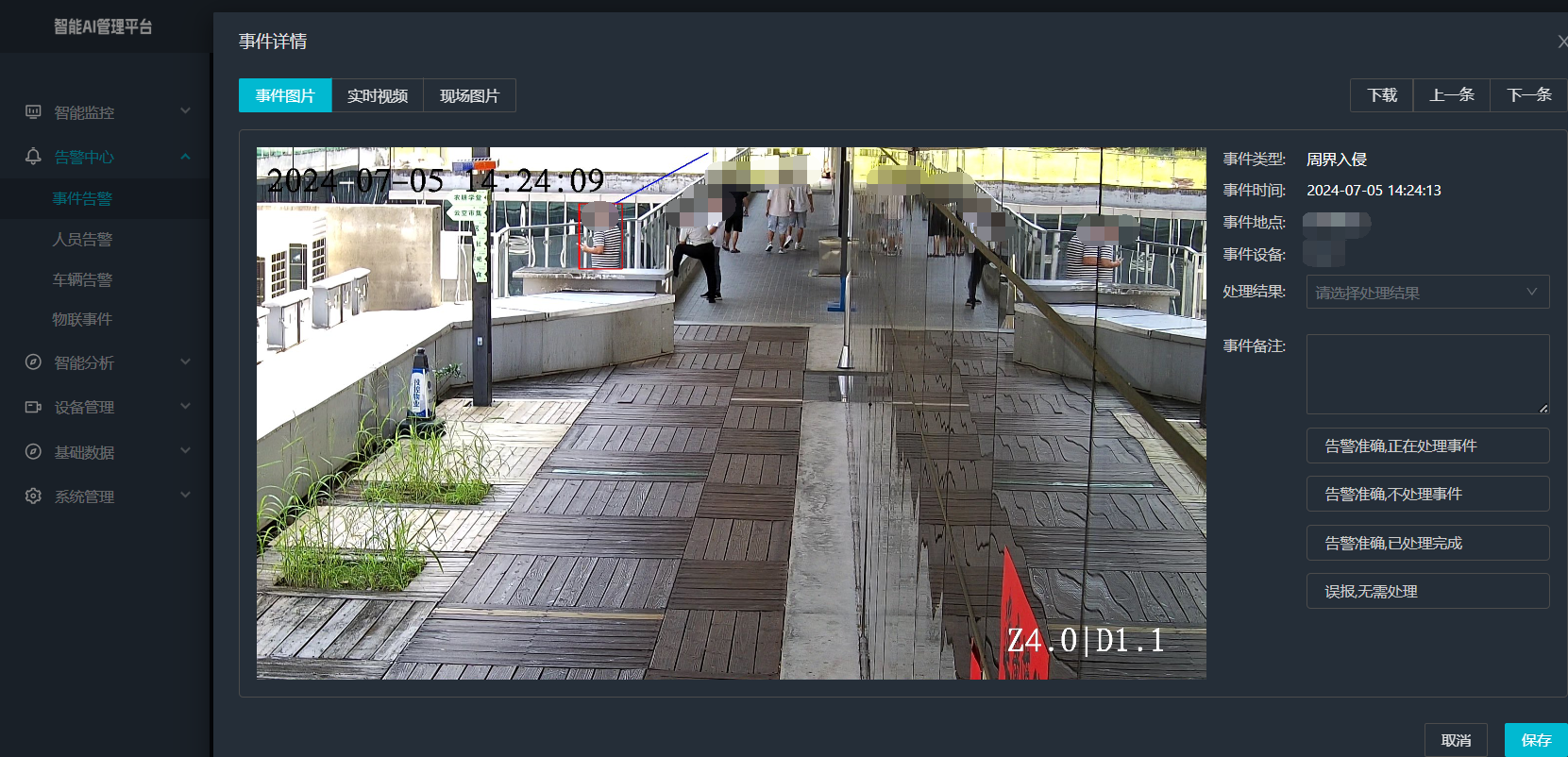
打手机检测算法AI智能分析网关V4守护公共/工业/医疗等多场景安全应用
一、方案背景 在现代生产与生活场景中,如工厂高危作业区、医院手术室、公共场景等,人员违规打手机的行为潜藏着巨大风险。传统依靠人工巡查的监管方式,存在效率低、覆盖面不足、判断主观性强等问题,难以满足对人员打手机行为精…...

6️⃣Go 语言中的哈希、加密与序列化:通往区块链世界的钥匙
Go 语言中的哈希、加密与序列化:通往区块链世界的钥匙 一、前言:离区块链还有多远? 区块链听起来可能遥不可及,似乎是只有密码学专家和资深工程师才能涉足的领域。但事实上,构建一个区块链的核心并不复杂,尤其当你已经掌握了一门系统编程语言,比如 Go。 要真正理解区…...