
【HarmonyOS4.0】第九篇-ArkUI布局容器组件(一)
容器组件指的是它可以包含一个或多个子组件的组件,除了前边介绍过的公共属性外。
一、线性布局容器(Row、Column)
线性容器类表示按照水平方向或者竖直方向排列子组件的容器,ArkUI开发框架通过 Row 和 Colum 来实现线性布局。
1.1.主轴和纵轴概念
什么是主轴和纵轴?
对于线性容器来说,有主轴和纵轴之分:
- 如果布局是沿水平方向,那么主轴就指水平方向,而纵轴就是垂直方向;
- 如果布局是沿垂直方向,那么主轴就是指垂直方向,而纵轴就是水平方向。
如下图所示:
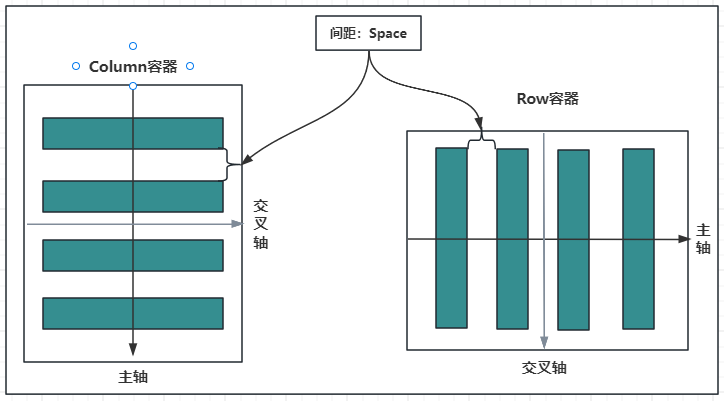
容器属性说明:
| 属性方法名 | 说明 | 参数 |
|---|---|---|
| justifyContent | 设置子元素在主轴方向的对齐格式 | FlexAlign枚举 |
| alignItems | 设置子元素在交叉轴方向的对齐格式 | Row容器使用VerticalAlign枚举Column容器使用HorizontalAlign 枚举 |
1.2.Column
Column 按照垂直方向布局子组件,主轴为垂直方向,纵轴为水平方向。
1.2.1.Column定义
沿垂直方向布局的容器。接口如下:
Column(value?: {space?: string | number})
value:可选参数, space 表示设置 Column 的子组件在垂直方向上的间距,参数:
| 参数名 | 参数类型 | 必填 | 参数描述 |
|---|---|---|---|
| space | string | number | 否 | 纵向布局元素垂直方向间距。从API version 9开始,space为负数或者justifyContent设置为FlexAlign.SpaceBetween、FlexAlign.SpaceAround、FlexAlign.SpaceEvenly时不生效。默认值:0说明:可选值为大于等于0的数字,或者可以转换为数字的字符串。 |
1.2.2.Column属性介绍
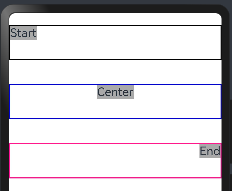
alignItems:设置子组件在水平方向上的布局方式, HorizontalAlign 定义了以下三种对其方式:
- Start:设置子组件在水平方向上按照语言方向起始端对齐。
- Center(默认值):设置子组件在水平方向上居中对齐。
- End:设置子组件在水平方向上按照语言方向末端对齐。
案例如下:
@Entry
@Component
struct ColumnExample {build() {//只能有一个根容器Column(){Column(){Text("Start").fontSize(20).backgroundColor("#A9A9A9")}.alignItems(HorizontalAlign.Start) //子容器:设置子组件在水平方向上按照语言方向起始端对齐。.size({width:"100%",height:60})    //容器的宽和高.borderWidth(2)                    //框线的宽度.borderColor("#000000")            //框线的颜色.margin({top:20, bottom:20})       //外上、下边距Column(){Text("Center").fontSize(20).backgroundColor("#A9A9A9")}.alignItems(HorizontalAlign.Center)//子容器:设置子组件在水平方向上居左对齐。.size({width:"100%",height:60})    //容器的宽和高.borderWidth(2)                    //框线的宽度.borderColor("#0000CD")            //框线的颜色.margin({top:20, bottom:20})       //外上、下边距Column(){Text("End").fontSize(20).backgroundColor("#A9A9A9")}.alignItems(HorizontalAlign.End)  //子容器:设置子组件在水平方向上按照语言方向末端对齐。.size({width:"100%",height:60})   //容器的宽和高.borderWidth(2)                   //框线的宽度.borderColor("#FF1493")           //框线的颜色.margin({top:20, bottom:20})      //外上、下边距}}
}
预览效果如下:
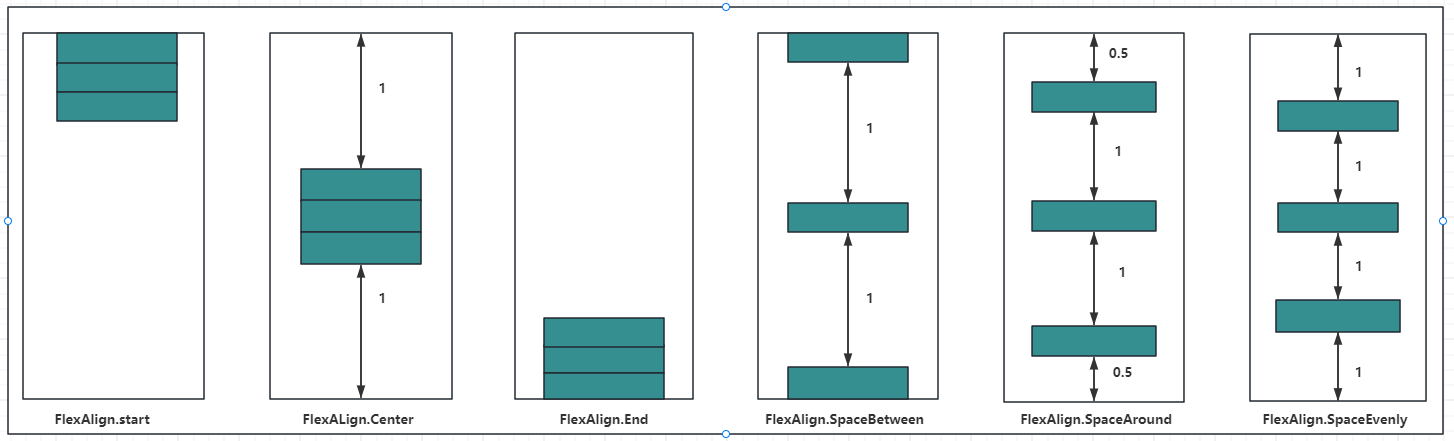
justifyContent:设置子组件在垂直方向上的对齐方式, FlexAlign枚举 定义了一下几种类型:
- Start:元素在主轴方向首端对齐, 第一个元素与行首对齐,同时后续的元素与前一个对齐。
- Center:元素在主轴方向中心对齐,第一个元素与行首的距离与最后一个元素与行尾距离相同。
- End:元素在主轴方向尾部对齐, 最后一个元素与行尾对齐,其他元素与后一个对齐。
- SpaceBetween:主轴方向均匀分配弹性元素,相邻元素之间距离相同。 第一个元素与行首对齐,最后一个元素与行尾对齐。
- SpaceAround:主轴方向均匀分配弹性元素,相邻元素之间距离相同。 第一个元素到行首的距离和最后一个元素到行尾的距离时相邻元素之间距离的一半。
- SpaceEvenly:主轴方向元素等间距布局, 相邻元素之间的间距、第一个元素与行首的间距、最后一个元素到行尾的间距都完全一样。
如下图所示:
案例代码如下:
@Entry
@Component
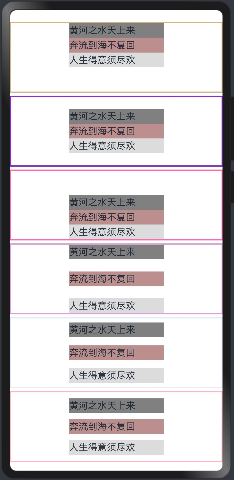
struct ColumnExample {build() {Column({space:5}){  // 设置子元素垂直方向间距为5Column(){Text("黄河之水天上来").size({width:160, height:25}).backgroundColor("#808080")Text("奔流到海不复回").size({width:160, height:25}).backgroundColor("#BC8F8F")Text("人生得意须尽欢").size({width:160, height:25}).backgroundColor("#DCDCDC")}.alignItems(HorizontalAlign.Center) //设置水平方向子容器居中.justifyContent(FlexAlign.Start) //元素在主轴方向首端对齐, 第一个元素与行首对齐,同时后续的元素与前一个对齐.size({width:"100%", height:120}) //容器大小.borderWidth(2).borderColor("#D2B48C")Column(){Text("黄河之水天上来").size({width:160, height:25}).backgroundColor("#808080")Text("奔流到海不复回").size({width:160, height:25}).backgroundColor("#BC8F8F")Text("人生得意须尽欢").size({width:160, height:25}).backgroundColor("#DCDCDC")}.alignItems(HorizontalAlign.Center) //设置水平方向子容器居中.justifyContent(FlexAlign.Center) //元素在主轴方向中心对齐,第一个元素与行首的距离与最后一个元素与行尾距离相同。.size({width:"100%", height:120}) //容器大小.borderWidth(2).borderColor("#8A2BE2")Column(){Text("黄河之水天上来").size({width:160, height:25}).backgroundColor("#808080")Text("奔流到海不复回").size({width:160, height:25}).backgroundColor("#BC8F8F")Text("人生得意须尽欢").size({width:160, height:25}).backgroundColor("#DCDCDC")}.alignItems(HorizontalAlign.Center) //设置水平方向子容器居中.justifyContent(FlexAlign.End) //元素在主轴方向尾部对齐, 最后一个元素与行尾对齐,其他元素与后一个对齐。.size({width:"100%", height:120}) //容器大小.borderWidth(2).borderColor("#FF69B4")Column(){Text("黄河之水天上来").size({width:160, height:25}).backgroundColor("#808080")Text("奔流到海不复回").size({width:160, height:25}).backgroundColor("#BC8F8F")Text("人生得意须尽欢").size({width:160, height:25}).backgroundColor("#DCDCDC")}.alignItems(HorizontalAlign.Center) //设置水平方向子容器居中.justifyContent(FlexAlign.SpaceBetween) //元素在主轴方向均匀分配弹性元素,相邻元素之间距离相同。 第一个元素与行首对齐,最后一个元素与行尾对齐。Q.size({width:"100%", height:120}) //容器大小.borderWidth(2).borderColor("#DDA0DD")Column(){Text("黄河之水天上来").size({width:160, height:25}).backgroundColor("#808080")Text("奔流到海不复回").size({width:160, height:25}).backgroundColor("#BC8F8F")Text("人生得意须尽欢").size({width:160, height:25}).backgroundColor("#DCDCDC")}.alignItems(HorizontalAlign.Center) //设置水平方向子容器居中.justifyContent(FlexAlign.SpaceAround) //元素在主轴方向均匀分配弹性元素,相邻元素之间距离相同。 第一个元素到行首的距离和最后一个元素到行尾的距离时相邻元素之间距离的一半。.size({width:"100%", height:120}) //容器大小.borderWidth(2).borderColor("#E6E6FA")Column(){Text("黄河之水天上来").size({width:160, height:25}).backgroundColor("#808080")Text("奔流到海不复回").size({width:160, height:25}).backgroundColor("#BC8F8F")Text("人生得意须尽欢").size({width:160, height:25}).backgroundColor("#DCDCDC")}.alignItems(HorizontalAlign.Center) //设置水平方向子容器居中.justifyContent(FlexAlign.SpaceEvenly) //元素在主轴方向元素等间距布局, 相邻元素之间的间距、第一个元素与行首的间距、最后一个元素到行尾的间距都完全一样。.size({width:"100%", height:120}) //容器大小.borderWidth(2).borderColor("#FFB6C1")}.width("100%").margin({top:20})}
}
预览效果如下:
1.3.Row
Row 按照水平方向布局子组件,主轴为水平方向,纵轴为竖直方向。
1.3.1.Row定义介绍
沿水平方向布局容器。接口如下:
Row(value?:{space?: number | string })
value:可选参数, space 表示设置 Row 的子组件在水平方向上的间距,案例如下:
@Entry
@Component
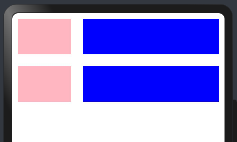
struct RowExample01 {build() {Column({space:20}){Row(){Text().width(90).height("100%").backgroundColor("#FFB6C1")Text().width(20).height("100%") //模拟元素直接间隔/*** 父容器尺寸确定时,设置了layoutWeight属性的子元素与兄弟元素占主轴尺寸按照权重进行分配,忽略元素本身尺寸设置,表示自适应占满剩余空间。默认值:0说明:仅在Row/Column/Flex布局中生效。可选值为大于等于0的数字,或者可以转换为数字的字符串。*/Text().width(20).height("100%").layoutWeight(1).backgroundColor(Color.Blue)}.width("100%").height(60)Row({space:20}){ //Row容器的间隔Text().width(90).height("100%").backgroundColor("#FFB6C1")/*** 父容器尺寸确定时,设置了layoutWeight属性的子元素与兄弟元素占主轴尺寸按照权重进行分配,忽略元素本身尺寸设置,表示自适应占满剩余空间。默认值:0说明:仅在Row/Column/Flex布局中生效。可选值为大于等于0的数字,或者可以转换为数字的字符串。*/Text().width(20).height("100%").layoutWeight(1).backgroundColor(Color.Blue)}.width("100%").height(60)}.width("100%").padding(10)}
}
注意:
layoutWeight:父容器尺寸确定时,设置了layoutWeight属性的子元素与兄弟元素占主轴尺寸按照权重进行分配,忽略元素本身尺寸设置,表示自适应占满剩余空间。默认值:0说明:
- 仅在Row/Column/Flex布局中生效。
- 可选值为大于等于0的数字,或者可以转换为数字的字符串。
预览效果如下:
1.3.2.Row属性介绍
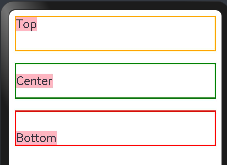
alignItems:参数类型为 VerticalAlign ,表示子组件在垂直方向上的布局方式, VerticalAlign 定义了以下三种对其方式:
- Top:设置子组件在竖直方向上居顶部对齐。
- Center(默认值):设置子组件在竖直方向上居中对其。
- Bottom:设置子组件在竖直方向上居底部对齐。
案例代码如下:
@Entry
@Component
struct RowExample01 {build() {Column({space:20}){Row(){//这里为了看到消息,不要设置子元素的宽和高Text("Top").fontSize(20).backgroundColor("#FFB6C1")}.width("100%").height(60).alignItems(VerticalAlign.Top)  //设置子组件在垂直方法顶部对象.borderWidth(2)                 //设置框线宽度.borderColor(Color.Orange)      //框线颜色Row({space:20}){ //Row容器的间隔Text("Center").fontSize(20).backgroundColor("#FFB6C1")}.width("100%").height(60).alignItems(VerticalAlign.Center)  //设置子组件在垂直方法居中对齐.borderWidth(2)                 //设置框线宽度.borderColor(Color.Green)       //框线颜色Row({space:20}){ //Row容器的间隔Text("Bottom").fontSize(20).backgroundColor("#FFB6C1")}.width("100%").height(60).alignItems(VerticalAlign.Bottom)  //设置子组件在垂直方法居中对齐.borderWidth(2)                    //设置框线宽度.borderColor(Color.Red)            //框线颜色}.width("100%").padding(10)}
}
预览效果如下:
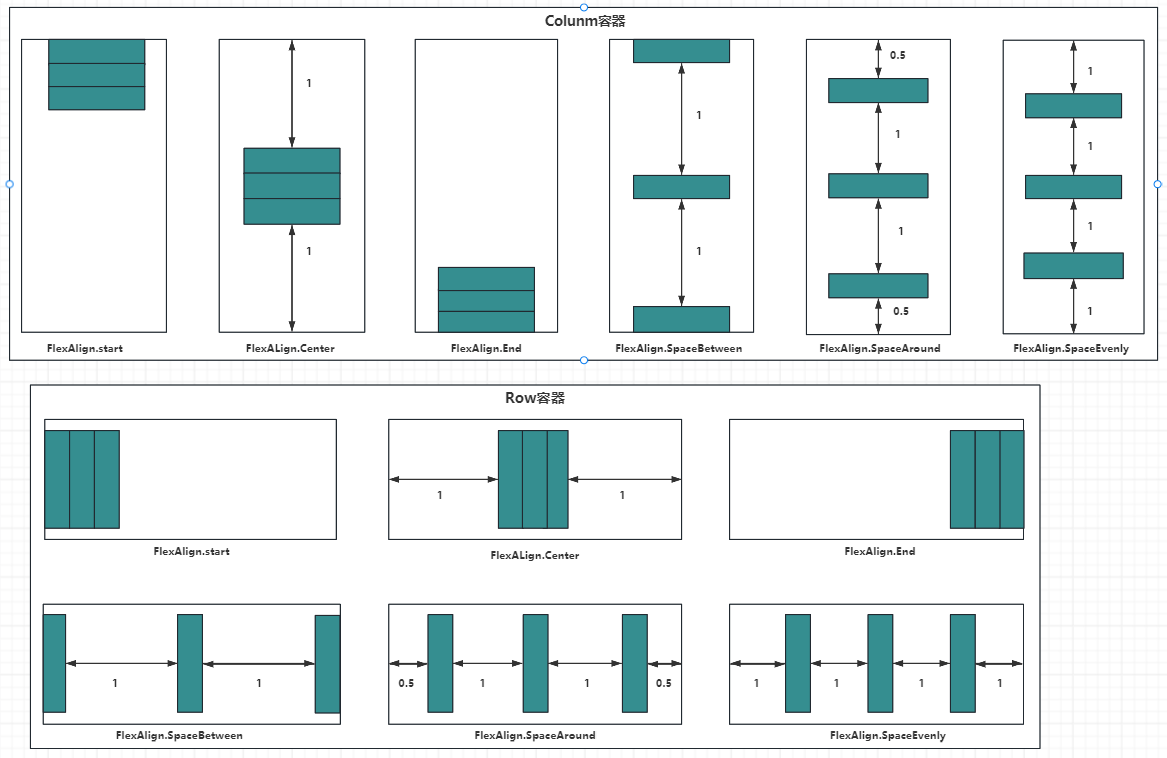
justifyContent:设置子组件在水平方向上的对齐方式, FlexAlign 定义了一下几种类型:
- Start:元素在主轴方向首端对齐, 第一个元素与行首对齐,同时后续的元素与前一个对齐。
- Center:元素在主轴方向中心对齐,第一个元素与行首的距离与最后一个元素与行尾距离相同。
- End:元素在主轴方向尾部对齐, 最后一个元素与行尾对齐,其他元素与后一个对齐。
- SpaceBetween:主轴方向均匀分配弹性元素,相邻元素之间距离相同。 第一个元素与行首对齐,最后一个元素与行尾对齐。
- SpaceAround:主轴方向均匀分配弹性元素,相邻元素之间距离相同。 第一个元素到行首的距离和最后一个元素到行尾的距离时相邻元素之间距离的一半。
- SpaceEvenly:主轴方向元素等间距布局, 相邻元素之间的间距、第一个元素与行首的间距、最后一个元素到行尾的间距都完全一样。
示意图如下:
案例代码如下:
@Entry
@Component
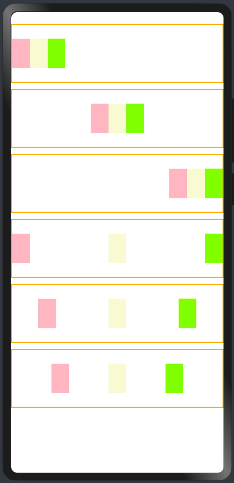
struct RowExample03 {build() {Column({space:10}){Row(){Text().size({width:30,height:50}).backgroundColor("#FFB6C1")Text().size({width:30,height:50}).backgroundColor("#FAFAD2")Text().size({width:30,height:50}).backgroundColor("#7FFF00")}.justifyContent(FlexAlign.Start) //元素在主轴方向首端对齐, 第一个元素与行首对齐,同时后续的元素与前一个对齐。.size({width:"100%", height:100}).borderWidth(2).borderColor(Color.Orange)Row(){Text().size({width:30,height:50}).backgroundColor("#FFB6C1")Text().size({width:30,height:50}).backgroundColor("#FAFAD2")Text().size({width:30,height:50}).backgroundColor("#7FFF00")}.justifyContent(FlexAlign.Center) //元素在主轴方向中心对齐,第一个元素与行首的距离与最后一个元素与行尾距离相同。.size({width:"100%", height:100}).borderWidth(2).borderColor(Color.Orange)Row(){Text().size({width:30,height:50}).backgroundColor("#FFB6C1")Text().size({width:30,height:50}).backgroundColor("#FAFAD2")Text().size({width:30,height:50}).backgroundColor("#7FFF00")}.justifyContent(FlexAlign.End) //元素在主轴方向尾部对齐, 最后一个元素与行尾对齐,其他元素与后一个对齐。.size({width:"100%", height:100}).borderWidth(2).borderColor(Color.Orange)Row(){Text().size({width:30,height:50}).backgroundColor("#FFB6C1")Text().size({width:30,height:50}).backgroundColor("#FAFAD2")Text().size({width:30,height:50}).backgroundColor("#7FFF00")}.justifyContent(FlexAlign.SpaceBetween) //主轴方向均匀分配弹性元素,相邻元素之间距离相同。 第一个元素与行首对齐,最后一个元素与行尾对齐.size({width:"100%", height:100}).borderWidth(2).borderColor(Color.Orange)Row(){Text().size({width:30,height:50}).backgroundColor("#FFB6C1")Text().size({width:30,height:50}).backgroundColor("#FAFAD2")Text().size({width:30,height:50}).backgroundColor("#7FFF00")}.justifyContent(FlexAlign.SpaceAround) //主轴方向均匀分配弹性元素,相邻元素之间距离相同。 第一个元素到行首的距离和最后一个元素到行尾的距离时相邻元素之间距离的一半。.size({width:"100%", height:100}).borderWidth(2).borderColor(Color.Orange)Row(){Text().size({width:30,height:50}).backgroundColor("#FFB6C1")Text().size({width:30,height:50}).backgroundColor("#FAFAD2")Text().size({width:30,height:50}).backgroundColor("#7FFF00")}.justifyContent(FlexAlign.SpaceEvenly) //主轴方向元素等间距布局, 相邻元素之间的间距、第一个元素与行首的间距、最后一个元素到行尾的间距都完全一样。.size({width:"100%", height:100}).borderWidth(2).borderColor(Color.Orange)}.width("100%").padding({top:20})}
}
如果 Row 设置了 space 参数,则 justifyContent 参数不起作用。预览效果如下:
1.4.Blank
Blank 表示空白填充组件,它用在 Row 和 Column 组件内来填充组件在主轴方向上的剩余尺寸的能力。
1.4.1.Blank定义
空白填充组件,在容器主轴方向上,空白填充组件具有自动填充容器空余部分的能力。仅当父组件为Row/Column/Flex时生效。接口如下:
Blank(min?: number | string)
参数:
| 参数名 | 参数类型 | 必填 | 参数描述 |
|---|---|---|---|
| min | number | string | 否 | 空白填充组件在容器主轴上的最小大小。默认值:0说明:不支持设置百分比。负值使用默认值。当最小值大于容器可用空间时,使用最小值作为自身大小并超出容器。 |
1.4.2.Blank属性
除支持通用属性外,还支持以下属性:
| 名称 | 参数类型 | 描述 |
|---|---|---|
| color | ResourceColor | 设置空白填充的填充颜色。默认值:Color.Transparent从API version 9开始,该接口支持在ArkTS卡片中使用。 |
1.4.3.案例
案例代码如下:
@Entry
@Component
struct BlackExample {build() {Column({space:20}){// blank父组件不设置宽度时,Blank失效,可以通过设置min最小宽度填充固定宽度Row(){Text("Bluetooth").fontSize(20) //文本Blank().color(Color.Green) //不设置空白颜色Toggle({type:ToggleType.Switch}) //按钮开关}.backgroundColor(Color.Pink).borderRadius(8).size({height:80}).justifyContent(FlexAlign.SpaceBetween) //设置.padding(10)Row(){Text("Bluetooth").fontSize(20) //靠左显示// 设置最小宽度为160Blank(160).color(Color.Orange) //设置空白颜色Toggle({type:ToggleType.Switch}) //按钮开关}.backgroundColor(Color.Pink).borderRadius(8).size({width:"100%", height:80}).justifyContent(FlexAlign.SpaceBetween) //设置.padding(10)}.padding(20).size({width: "100%", height: "100%"})}
}
预览效果如下:
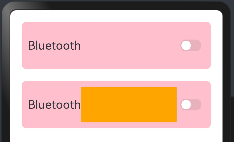
Blank 的特点:
- Black只在
Row和Column容器中生效。 - 除了
color外不支持通用属性。 - 只在
Row和Column有剩余空间才生效。 - 适合用在多设备适配场景中。
1.5.完整案例演示
学习上面的内容需要知道:纵向布局使用Column容器,横向布局采用Row容器,通过justifyContent和alignItems分别用来设置主轴和交叉轴的对齐方式:
| 属性方法名 | 说明 | 参数 |
|---|---|---|
| justifyContent | 设置子元素在主轴方向的对齐格式 | FlexAlign枚举 |
| alignItems | 设置子元素在交叉轴方向的对齐格式 | Row容器使用VerticalAlign枚举Column容器使用HorizontalAlign 枚举 |
1.5.1.需求如下
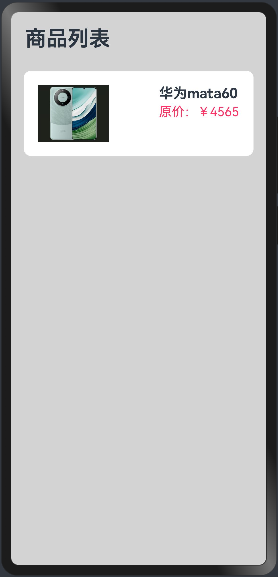
实现商品列表的展示,如下:
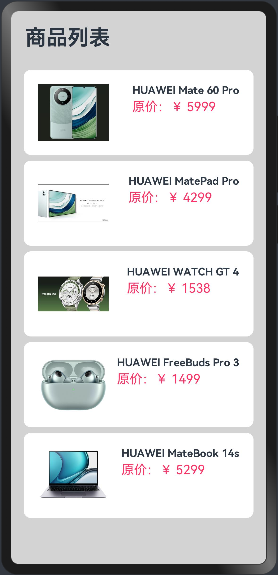
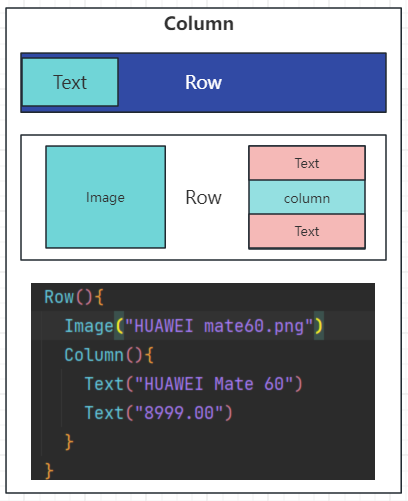
分析页面元素构成:
1.5.2.实现思路
这里的商品列表是,不能通过一个一个的Row容器实现,需要通过ForEach实现,很多时间是不确定有多少个商品的,如下:
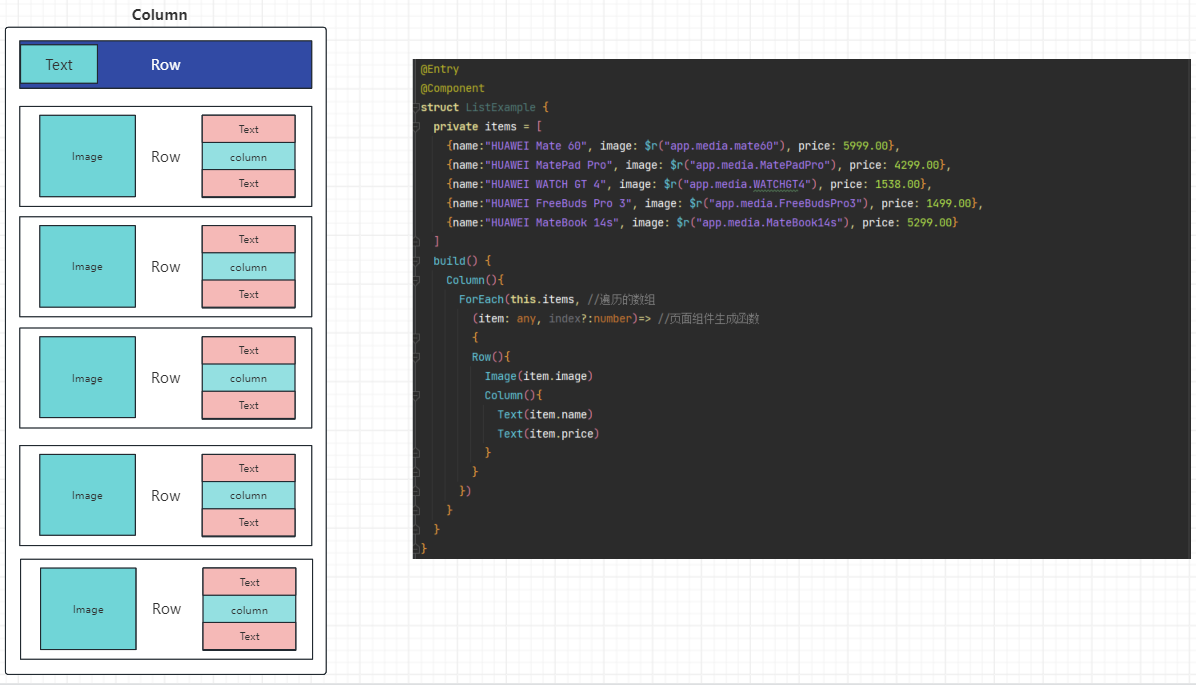
代码如下:
@Entry
@Component
struct ListExample {private items = [{name:"HUAWEI Mate 60", image: $r("app.media.mate60"), price: 5999.00},{name:"HUAWEI MatePad Pro", image: $r("app.media.MatePadPro"), price: 4299.00},{name:"HUAWEI WATCH GT 4", image: $r("app.media.WATCHGT4"), price: 1538.00},{name:"HUAWEI FreeBuds Pro 3", image: $r("app.media.FreeBudsPro3"), price: 1499.00},{name:"HUAWEI MateBook 14s", image: $r("app.media.MateBook14s"), price: 5299.00}]build() {Column(){ForEach(this.items, //遍历的数组(item: any, index?:number)=> //页面组件生成函数{Row(){Image(item.image)Column(){Text(item.name)Text(item.price)}}})}}
}
1.5.3.实现单个商品展示
不要一蹴而就,先编写单个商品的展示,调整好样式,在考虑后续的,代码如下:
@Entry
@Component
struct ListExample {build() {Column({space:8}){Row(){Text("商品列表").fontSize(30).fontWeight(FontWeight.Bold)}.width("100%").padding(20)Row({space:10}){Image($r('app.media.mate60')).width(100)Column({space:4}){Text("华为mata60").fontSize(20).fontWeight(FontWeight.Bold)Text("原价:¥4565").fontColor("#F36").fontSize(18)}.height("100%").alignItems(HorizontalAlign.Start) //设置子组件在水平方向上按照语言方向起始端对齐。}.width("90%")  //设置宽度.height(120)    //设置高度.justifyContent(FlexAlign.SpaceBetween) //设置主轴方向主轴方向均匀分配弹性元素,相邻元素之间距离相同。 第一个元素与行首对齐,最后一个元素与行尾对齐。.backgroundColor("#FFFFFF") //设置背景为白色.borderRadius(10) //这是圆角班级.padding(20) //内边距}.width("100%").height("100%").backgroundColor("#D3D3D3")}
}
预览效果如下:
1.5.4.实现商品列表,展示商品
由于后期商品很多数量不确定,不可能写多个Row标签,所以这里使用ForEach循环渲染出来商品列表信息:
class Item{//定位属性name: stringimage: anyprice: numberconstructor(name: string, image: any, price: number) {this.name = namethis.image = imagethis.price = price}
}@Entry
@Component
struct ListExample {private items:Array<Item> = [new Item("HUAWEI Mate 60 Pro",$r("app.media.mate60"),  5999.00),new Item("HUAWEI MatePad Pro",$r("app.media.MatePadPro"),4299.00),new Item("HUAWEI WATCH GT 4", $r("app.media.WATCHGT4"), 1538.00),new Item("HUAWEI FreeBuds Pro 3", $r("app.media.FreeBudsPro3"), 1499.00),new Item("HUAWEI MateBook 14s", $r("app.media.MateBook14s"), 5299.00)]build() {Column({space:8}){Row(){Text("商品列表").fontSize(30).fontWeight(FontWeight.Bold)}.width("100%").padding(20)ForEach(this.items,(item: Item, index?:number)=>{Row({space:10}){Image(item.image).width(100)Column({space:4}){Text(item.name).fontSize(15).fontWeight(FontWeight.Bold)Text(`原价:¥ ${item.price}`).fontColor("#F36").fontSize(18)}.height("100%").alignItems(HorizontalAlign.Start)}.width("90%")  //设置宽度.height(120)    //设置高度.justifyContent(FlexAlign.SpaceBetween) //设置主轴方向主轴方向均匀分配弹性元素,相邻元素之间距离相同。 第一个元素与行首对齐,最后一个元素与行尾对齐。.backgroundColor("#FFFFFF") //设置背景为白色.borderRadius(10) //这是圆角班级.padding(20) //内边距})}.width("100%").height("100%").backgroundColor("#D3D3D3")}
}
预览效果如下:
上面的内容虽然可以展示商品,但是商品的数量过多,无法展示出来,这时候就要采用List容器来采用滚动的方式实现。
二、弹性布局容器(Flex)
ArkUI 开发框架为了方便开发者实现灵活的页面布局方式,提供了弹性布局 Flex ,它用来为盒装模型提供最大的灵活性。 Flex 和 Row 、 Column 组件一样,也有主轴和纵轴之分。
说明:
- Flex组件在渲染时存在二次布局过程,因此在对性能有严格要求的场景下建议使用Column、Row代替。
- Flex组件主轴默认不设置时撑满父容器,Column、Row组件主轴不设置时默认是跟随子节点大小。
2.1.Flex接口
Flex(value?: { direction?: FlexDirection, wrap?: FlexWrap, justifyContent?: FlexAlign, alignItems?: ItemAlign, alignContent?: FlexAlign })
2.2.参数
value是一个对象。
2.2.1.direction
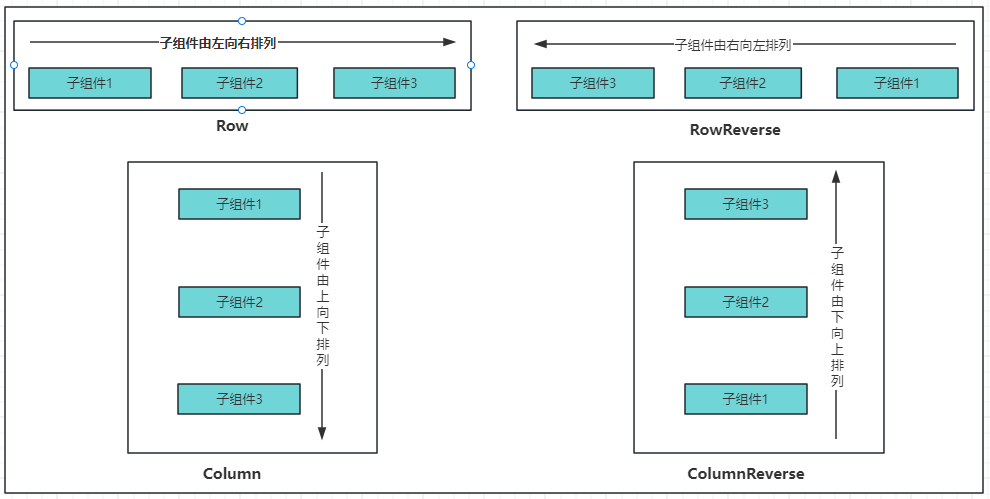
direction:设置子组件的的排列方向即主轴方向, 类型FlexDirection 定义了以下4种排列方式:
| 名称 | 描述 |
|---|---|
| Row | 主轴与行方向一致作为布局模式。 |
| RowReverse | 与Row方向相反方向进行布局。 |
| Column | 主轴与列方向一致作为布局模式。 |
| ColumnReverse | 与Column相反方向进行布局。 |
示例图如下:
说明:
1)Row(默认值):子组件水平排列,即主轴为水平方向纵轴为竖直方向,子组件由左向右排列:
2)Column:子组件竖直排列,即主轴为垂直方向,起点在上边,子组件由上到下排列。
3)Column:子组件竖直排列,即主轴为垂直方向,起点在上边,子组件由上到下排列。
4)ColumnReverse:子组件竖直排列,即主轴为垂直方向,起点在下边,子组件由下到上排列。
案例代码如下:
@Entry
@Component
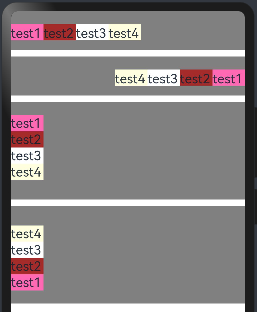
struct FlexExample {build() {Column({space:10}){//Row(默认值):子组件水平排列,即主轴为水平方向纵轴为竖直方向,子组件由左向右排列。Flex({direction: FlexDirection.Row}){Text("test1").fontSize(20).backgroundColor("#FF69B4").width(50).height(25)Text("test2").fontSize(20).backgroundColor("#A52A2A").width(50).height(25)Text("test3").fontSize(20).backgroundColor("#FFFFFF").width(50).height(25)Text("test4").fontSize(20).backgroundColor("#FFFFE0").width(50).height(25)}.width("100%").height(60).backgroundColor("#808080").padding({top:20,bottom:20})//RowReverse:子组件水平排列,即主轴为水平方向纵轴为竖直方向,子组件由右向左排列。Flex({direction: FlexDirection.RowReverse}){Text("test1").fontSize(20).backgroundColor("#FF69B4").width(50).height(25)Text("test2").fontSize(20).backgroundColor("#A52A2A").width(50).height(25)Text("test3").fontSize(20).backgroundColor("#FFFFFF").width(50).height(25)Text("test4").fontSize(20).backgroundColor("#FFFFE0").width(50).height(25)}.width("100%").height(60).backgroundColor("#808080").padding({top:20,bottom:20})//Column:子组件竖直排列,即主轴为垂直方向,起点在上边,子组件由上到下排列。Flex({direction: FlexDirection.Column}){Text("test1").fontSize(20).backgroundColor("#FF69B4").width(50).height(25)Text("test2").fontSize(20).backgroundColor("#A52A2A").width(50).height(25)Text("test3").fontSize(20).backgroundColor("#FFFFFF").width(50).height(25)Text("test4").fontSize(20).backgroundColor("#FFFFE0").width(50).height(25)}.width("100%").height(150).backgroundColor("#808080").padding({top:20,bottom:20})//ColumnReverse:子组件竖直排列,即主轴为垂直方向,起点在下边,子组件由下到上排列。Flex({direction: FlexDirection.ColumnReverse}){Text("test1").fontSize(20).backgroundColor("#FF69B4").width(50).height(25)Text("test2").fontSize(20).backgroundColor("#A52A2A").width(50).height(25)Text("test3").fontSize(20).backgroundColor("#FFFFFF").width(50).height(25)Text("test4").fontSize(20).backgroundColor("#FFFFE0").width(50).height(25)}.width("100%").height(150).backgroundColor("#808080").padding({top:20,bottom:20})}.width("100%").height("100%")}
}
预览效果如下:
2.2.2.wrap
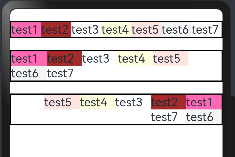
wrap:设置子组件是单行/列还是多行/列排序, FlexWrap枚举提供了以下3种类型:
| 名称 | 描述 |
|---|---|
| NoWrap | Flex容器的元素单行/列布局,子项不允许超出容器。 |
| Wrap | Flex容器的元素多行/列排布,子项允许超出容器。 |
| WrapReverse | Flex容器的元素反向多行/列排布,子项允许超出容器。 |
案例代码如下:
@Entry
@Component
struct FlexExample02 {build() {Column({space:20}){//1.NoWrap(默认值):子组件单行/列排序,子组件不允许超出容器。会挤在一起Flex({direction:FlexDirection.Row, wrap: FlexWrap.NoWrap}){Text("test1").fontSize(20).backgroundColor("#FF69B4").width(60).height(25)Text("test2").fontSize(20).backgroundColor("#A52A2A").width(60).height(25)Text("test3").fontSize(20).backgroundColor("#FFFFFF").width(60).height(25)Text("test4").fontSize(20).backgroundColor("#FFFFE0").width(60).height(25)Text("test5").fontSize(20).backgroundColor("#FFE4E1").width(60).height(25)Text("test6").fontSize(20).backgroundColor("#F5F5F5").width(60).height(25)Text("test7").fontSize(20).backgroundColor("#FFFFFF").width(60).height(25)}.borderWidth(2)//2.Wrap:子组件多行/列排序,子组件允许超出容器。Flex({direction:FlexDirection.Row, wrap: FlexWrap.Wrap}){Text("test1").fontSize(20).backgroundColor("#FF69B4").width(60).height(25)Text("test2").fontSize(20).backgroundColor("#A52A2A").width(60).height(25)Text("test3").fontSize(20).backgroundColor("#FFFFFF").width(60).height(25)Text("test4").fontSize(20).backgroundColor("#FFFFE0").width(60).height(25)Text("test5").fontSize(20).backgroundColor("#FFE4E1").width(60).height(25)Text("test6").fontSize(20).backgroundColor("#F5F5F5").width(60).height(25)Text("test7").fontSize(20).backgroundColor("#FFFFFF").width(60).height(25)}.borderWidth(2)//3.WrapReverse:子组件反向多行/列排序,子组件允许超出容器。Flex({direction:FlexDirection.Row, wrap: FlexWrap.WrapReverse}){Text("test1").fontSize(20).backgroundColor("#FF69B4").width(60).height(25)Text("test2").fontSize(20).backgroundColor("#A52A2A").width(60).height(25)Text("test3").fontSize(20).backgroundColor("#FFFFFF").width(60).height(25)Text("test4").fontSize(20).backgroundColor("#FFFFE0").width(60).height(25)Text("test5").fontSize(20).backgroundColor("#FFE4E1").width(60).height(25)Text("test6").fontSize(20).backgroundColor("#F5F5F5").width(60).height(25)Text("test7").fontSize(20).backgroundColor("#FFFFFF").width(60).height(25)}.borderWidth(2)}.width("100%").height("100%").padding({top:20, bottom:20})}
}
预览效果如下:
2.2.3.justifyContent
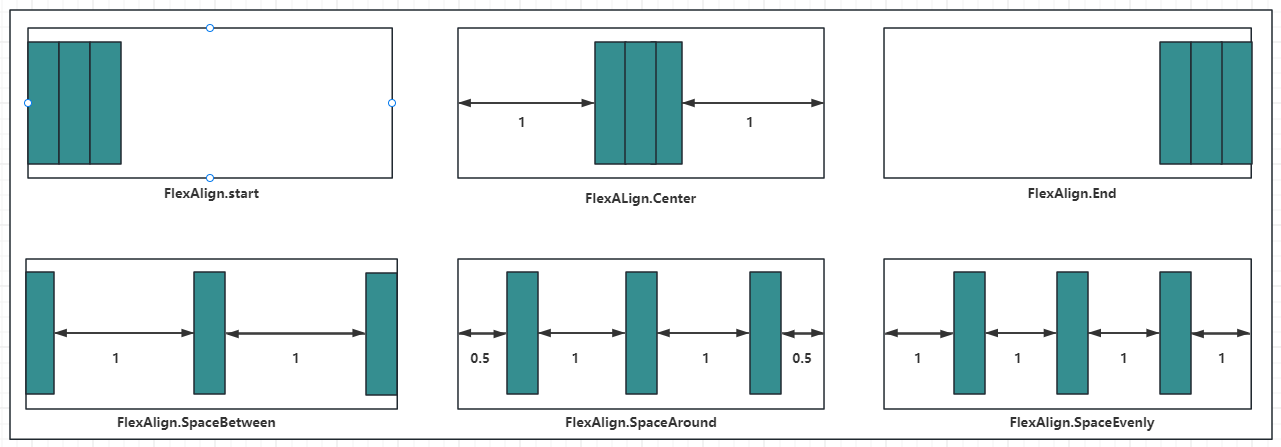
justifyContent:设置子组件在主轴上的对齐方式, FlexAlign 提供了以下 6 种对齐方式:
| 名称 | 描述 |
|---|---|
| Start | 元素在主轴方向首端对齐,第一个元素与行首对齐,同时后续的元素与前一个对齐。 |
| Center | 元素在主轴方向中心对齐,第一个元素与行首的距离与最后一个元素与行尾距离相同。 |
| End | 元素在主轴方向尾部对齐,最后一个元素与行尾对齐,其他元素与后一个对齐。 |
| SpaceBetween | Flex主轴方向均匀分配弹性元素,相邻元素之间距离相同。第一个元素与行首对齐,最后一个元素与行尾对齐。 |
| SpaceAround | Flex主轴方向均匀分配弹性元素,相邻元素之间距离相同。第一个元素到行首的距离和最后一个元素到行尾的距离是相邻元素之间距离的一半。 |
| SpaceEvenly | Flex主轴方向均匀分配弹性元素,相邻元素之间的距离、第一个元素与行首的间距、最后一个元素到行尾的间距都完全一样。 |
如下图所示:
案例代码如下:
@Entry
@Component
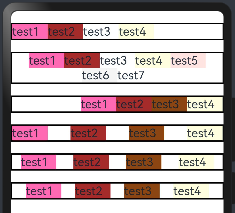
struct FlexExample02 {build() {Column({space:20}){//Start(默认值):元素在主轴方向首端对齐, 第一个元素与行首对齐,同时后续的元素与前一个对齐。Flex({direction:FlexDirection.Row, wrap: FlexWrap.Wrap, justifyContent:FlexAlign.Start}){Text("test1").fontSize(20).backgroundColor("#FF69B4").width(60).height(25)Text("test2").fontSize(20).backgroundColor("#A52A2A").width(60).height(25)Text("test3").fontSize(20).backgroundColor("#FFFFFF").width(60).height(25)Text("test4").fontSize(20).backgroundColor("#FFFFE0").width(60).height(25)}.borderWidth(2)//Center:元素在主轴方向中心对齐,第一个元素与行首的距离与最后一个元素与行尾距离相同。Flex({direction:FlexDirection.Row, wrap: FlexWrap.Wrap,justifyContent:FlexAlign.Center}){Text("test1").fontSize(20).backgroundColor("#FF69B4").width(60).height(25)Text("test2").fontSize(20).backgroundColor("#A52A2A").width(60).height(25)Text("test3").fontSize(20).backgroundColor("#FFFFFF").width(60).height(25)Text("test4").fontSize(20).backgroundColor("#FFFFE0").width(60).height(25)Text("test5").fontSize(20).backgroundColor("#FFE4E1").width(60).height(25)Text("test6").fontSize(20).backgroundColor("#F5F5F5").width(60).height(25)Text("test7").fontSize(20).backgroundColor("#FFFFFF").width(60).height(25)}.borderWidth(2)//End:元素在主轴方向尾部对齐, 最后一个元素与行尾对齐,其他元素与后一个对齐。Flex({direction:FlexDirection.Row, wrap: FlexWrap.Wrap,justifyContent:FlexAlign.End}){Text("test1").fontSize(20).backgroundColor("#FF69B4").width(60).height(25)Text("test2").fontSize(20).backgroundColor("#A52A2A").width(60).height(25)Text("test3").fontSize(20).backgroundColor("#8B4513").width(60).height(25)Text("test4").fontSize(20).backgroundColor("#FFFFE0").width(60).height(25)}.borderWidth(2)//SpaceBetween:Flex 主轴方向均匀分配弹性元素,相邻元素之间距离相同。 第一个元素与行首对齐,最后一个元素与行尾对齐。Flex({direction:FlexDirection.Row, wrap: FlexWrap.Wrap,justifyContent:FlexAlign.SpaceBetween}){Text("test1").fontSize(20).backgroundColor("#FF69B4").width(60).height(25)Text("test2").fontSize(20).backgroundColor("#A52A2A").width(60).height(25)Text("test3").fontSize(20).backgroundColor("#8B4513").width(60).height(25)Text("test4").fontSize(20).backgroundColor("#FFFFE0").width(60).height(25)}.borderWidth(2)//SpaceAround: Flex 主轴方向均匀分配弹性元素,相邻元素之间距离相同。 第一个元素到行首的距离和最后一个元素到行尾的距离时相邻元素之间距离的一半。Flex({direction:FlexDirection.Row, wrap: FlexWrap.Wrap,justifyContent:FlexAlign.SpaceAround}){Text("test1").fontSize(20).backgroundColor("#FF69B4").width(60).height(25)Text("test2").fontSize(20).backgroundColor("#A52A2A").width(60).height(25)Text("test3").fontSize(20).backgroundColor("#8B4513").width(60).height(25)Text("test4").fontSize(20).backgroundColor("#FFFFE0").width(60).height(25)}.borderWidth(2)//SpaceEvenly: Flex 主轴方向元素等间距布局, 相邻元素之间的间距、第一个元素与行首的间距、最后一个元素到行尾的间距都完全一样。Flex({direction:FlexDirection.Row, wrap: FlexWrap.Wrap,justifyContent:FlexAlign.SpaceEvenly}){Text("test1").fontSize(20).backgroundColor("#FF69B4").width(60).height(25)Text("test2").fontSize(20).backgroundColor("#A52A2A").width(60).height(25)Text("test3").fontSize(20).backgroundColor("#8B4513").width(60).height(25)Text("test4").fontSize(20).backgroundColor("#FFFFE0").width(60).height(25)}.borderWidth(2)}.width("100%").height("100%").padding({top:20, bottom:20})}
}
预览效果如下:
2.2.4.alignItems
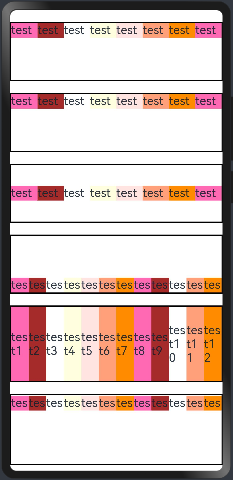
所有子组件在Flex容器交叉轴上的对齐格式。默认值是ItemAlign.Start,ItemAlign枚举有6种对齐方式:
| 名称 | 描述 |
|---|---|
| Auto | 使用Flex容器中默认配置。 |
| Start | 元素在Flex容器中,交叉轴方向首部对齐。 |
| Center | 元素在Flex容器中,交叉轴方向居中对齐。 |
| End | 元素在Flex容器中,交叉轴方向底部对齐。 |
| Stretch | 元素在Flex容器中,交叉轴方向拉伸填充。容器为Flex且设置Wrap为FlexWrap.Wrap或FlexWrap.WrapReverse时,元素拉伸到与当前行/列交叉轴长度最长的元素尺寸。其余情况在元素未设置尺寸时,拉伸到容器尺寸。 |
| Baseline | 元素在Flex容器中,交叉轴方向文本基线对齐。 |
代码如下:为了看到效果,不要设置wrap(设置子组件是单行/列还是多行/列排序)
@Entry
@Component
struct FlexExample02 {build() {Column({space:20}){//ItemAlign.Auto使用Flex容器中默认配置。Flex({direction:FlexDirection.Row, alignItems:ItemAlign.Auto}){Text("test1").fontSize(20).backgroundColor("#FF69B4").width(60).height(25)Text("test2").fontSize(20).backgroundColor("#A52A2A").width(60).height(25)Text("test3").fontSize(20).backgroundColor("#FFFFFF").width(60).height(25)Text("test4").fontSize(20).backgroundColor("#FFFFE0").width(60).height(25)Text("test5").fontSize(20).backgroundColor("#FFE4E1").width(60).height(25)Text("test6").fontSize(20).backgroundColor("#FFA07A").width(60).height(25)Text("test7").fontSize(20).backgroundColor("#FF8C00").width(60).height(25)Text("test8").fontSize(20).backgroundColor("#FF69B4").width(60).height(25)}.borderWidth(2).width("100%").height(100)//ItemAlign.Start 元素在Flex容器中,交叉轴方向首部对齐。。Flex({direction:FlexDirection.Row, alignItems:ItemAlign.Start}){Text("test1").fontSize(20).backgroundColor("#FF69B4").width(60).height(25)Text("test2").fontSize(20).backgroundColor("#A52A2A").width(60).height(25)Text("test3").fontSize(20).backgroundColor("#FFFFFF").width(60).height(25)Text("test4").fontSize(20).backgroundColor("#FFFFE0").width(60).height(25)Text("test5").fontSize(20).backgroundColor("#FFE4E1").width(60).height(25)Text("test6").fontSize(20).backgroundColor("#FFA07A").width(60).height(25)Text("test7").fontSize(20).backgroundColor("#FF8C00").width(60).height(25)Text("test8").fontSize(20).backgroundColor("#FF69B4").width(60).height(25)}.borderWidth(2).width("100%").height(100)//ItemAlign.Center 元素在Flex容器中,交叉轴方向居中对齐Flex({direction:FlexDirection.Row,alignItems:ItemAlign.Center}){Text("test1").fontSize(20).backgroundColor("#FF69B4").width(60).height(25)Text("test2").fontSize(20).backgroundColor("#A52A2A").width(60).height(25)Text("test3").fontSize(20).backgroundColor("#FFFFFF").width(60).height(25)Text("test4").fontSize(20).backgroundColor("#FFFFE0").width(60).height(25)Text("test5").fontSize(20).backgroundColor("#FFE4E1").width(60).height(25)Text("test6").fontSize(20).backgroundColor("#FFA07A").width(60).height(25)Text("test7").fontSize(20).backgroundColor("#FF8C00").width(60).height(25)Text("test8").fontSize(20).backgroundColor("#FF69B4").width(60).height(25)}.borderWidth(2).width("100%").height(100)//ItemAlign.End:元素在Flex容器中,交叉轴方向底部对齐。Flex({direction:FlexDirection.Row, alignItems:ItemAlign.End}){Text("test1").fontSize(20).backgroundColor("#FF69B4").width(60).height(25)Text("test2").fontSize(20).backgroundColor("#A52A2A").width(60).height(25)Text("test3").fontSize(20).backgroundColor("#FFFFFF").width(60).height(25)Text("test4").fontSize(20).backgroundColor("#FFFFE0").width(60).height(25)Text("test5").fontSize(20).backgroundColor("#FFE4E1").width(60).height(25)Text("test6").fontSize(20).backgroundColor("#FFA07A").width(60).height(25)Text("test7").fontSize(20).backgroundColor("#FF8C00").width(60).height(25)Text("test8").fontSize(20).backgroundColor("#FF69B4").width(60).height(25)Text("test9").fontSize(20).backgroundColor("#A52A2A").width(60).height(25)Text("test10").fontSize(20).backgroundColor("#FFFFFF").width(60).height(25)Text("test11").fontSize(20).backgroundColor("#FFA07A").width(60).height(25)Text("test12").fontSize(20).backgroundColor("#FF8C00").width(60).height(25)}.borderWidth(2).width("100%").height(100)//ItemAlign.Stretch:元素在Flex容器中,交叉轴方向拉伸填充。//容器为Flex且设置Wrap为FlexWrap.Wrap或FlexWrap.WrapReverse时,//元素拉伸到与当前行/列交叉轴长度最长的元素尺寸。其余情况在元素未设置尺寸时,拉伸到容器尺寸。Flex({direction:FlexDirection.Row, alignItems:ItemAlign.Stretch}){Text("test1").fontSize(20).backgroundColor("#FF69B4").width(60).height(25)Text("test2").fontSize(20).backgroundColor("#A52A2A").width(60).height(25)Text("test3").fontSize(20).backgroundColor("#FFFFFF").width(60).height(25)Text("test4").fontSize(20).backgroundColor("#FFFFE0").width(60).height(25)Text("test5").fontSize(20).backgroundColor("#FFE4E1").width(60).height(25)Text("test6").fontSize(20).backgroundColor("#FFA07A").width(60).height(25)Text("test7").fontSize(20).backgroundColor("#FF8C00").width(60).height(25)Text("test8").fontSize(20).backgroundColor("#FF69B4").width(60).height(25)Text("test9").fontSize(20).backgroundColor("#A52A2A").width(60).height(25)Text("test10").fontSize(20).backgroundColor("#FFFFFF").width(60).height(25)Text("test11").fontSize(20).backgroundColor("#FFA07A").width(60).height(25)Text("test12").fontSize(20).backgroundColor("#FF8C00").width(60).height(25)}.borderWidth(2).width("100%").height(130)//ItemAlign.Baseline:元素在Flex容器中,交叉轴方向文本基线对齐。。Flex({direction:FlexDirection.Row, alignItems:ItemAlign.Baseline}){Text("test1").fontSize(20).backgroundColor("#FF69B4").width(60).height(25)Text("test2").fontSize(20).backgroundColor("#A52A2A").width(60).height(25)Text("test3").fontSize(20).backgroundColor("#FFFFFF").width(60).height(25)Text("test4").fontSize(20).backgroundColor("#FFFFE0").width(60).height(25)Text("test5").fontSize(20).backgroundColor("#FFE4E1").width(60).height(25)Text("test6").fontSize(20).backgroundColor("#FFA07A").width(60).height(25)Text("test7").fontSize(20).backgroundColor("#FF8C00").width(60).height(25)Text("test8").fontSize(20).backgroundColor("#FF69B4").width(60).height(25)Text("test9").fontSize(20).backgroundColor("#A52A2A").width(60).height(25)Text("test10").fontSize(20).backgroundColor("#FFFFFF").width(60).height(25)Text("test11").fontSize(20).backgroundColor("#FFA07A").width(60).height(25)Text("test12").fontSize(20).backgroundColor("#FF8C00").width(60).height(25)}.borderWidth(2).width("100%").height(120)}.width("100%").height("100%").padding({top:20, bottom:20})}
}
预览效果如下:
2.2.5.alignContent
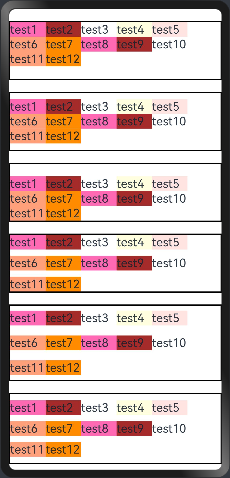
alignContent:当交叉轴有额外的空间时,多行内容的对齐方式。该属性仅在 wrap 属性为 Wrap 或者 WrapReverse 时才生效, FlexAlign 定义了以下 6 种对齐方式:
| 名称 | 描述 |
|---|---|
| Start | 元素在主轴方向首端对齐,第一个元素与行首对齐,同时后续的元素与前一个对齐。 |
| Center | 元素在主轴方向中心对齐,第一个元素与行首的距离与最后一个元素与行尾距离相同。 |
| End | 元素在主轴方向尾部对齐,最后一个元素与行尾对齐,其他元素与后一个对齐。 |
| SpaceBetween | Flex主轴方向均匀分配弹性元素,相邻元素之间距离相同。第一个元素与行首对齐,最后一个元素与行尾对齐。 |
| SpaceAround | Flex主轴方向均匀分配弹性元素,相邻元素之间距离相同。第一个元素到行首的距离和最后一个元素到行尾的距离是相邻元素之间距离的一半。 |
| SpaceEvenly | Flex主轴方向均匀分配弹性元素,相邻元素之间的距离、第一个元素与行首的间距、最后一个元素到行尾的间距都完全一样。 |
案例代码如下:
@Entry
@Component
struct FlexExample02 {build() {Column({space:20}){//Start(默认值):设置子组件在交叉轴(纵轴)方向首部对齐。Flex({direction:FlexDirection.Row, wrap: FlexWrap.Wrap, alignContent:FlexAlign.Start}){Text("test1").fontSize(20).backgroundColor("#FF69B4").width(60).height(25)Text("test2").fontSize(20).backgroundColor("#A52A2A").width(60).height(25)Text("test3").fontSize(20).backgroundColor("#FFFFFF").width(60).height(25)Text("test4").fontSize(20).backgroundColor("#FFFFE0").width(60).height(25)Text("test5").fontSize(20).backgroundColor("#FFE4E1").width(60).height(25)Text("test6").fontSize(20).backgroundColor("#FFA07A").width(60).height(25)Text("test7").fontSize(20).backgroundColor("#FF8C00").width(60).height(25)Text("test8").fontSize(20).backgroundColor("#FF69B4").width(60).height(25)Text("test9").fontSize(20).backgroundColor("#A52A2A").width(60).height(25)Text("test10").fontSize(20).backgroundColor("#FFFFFF").width(60).height(25)Text("test11").fontSize(20).backgroundColor("#FFA07A").width(60).height(25)Text("test12").fontSize(20).backgroundColor("#FF8C00").width(60).height(25)}.borderWidth(2).width("100%").height(100)//Center:设置子组件在交叉轴(纵轴)方向居中对齐。Flex({direction:FlexDirection.Row, wrap: FlexWrap.Wrap,alignContent:FlexAlign.Center}){Text("test1").fontSize(20).backgroundColor("#FF69B4").width(60).height(25)Text("test2").fontSize(20).backgroundColor("#A52A2A").width(60).height(25)Text("test3").fontSize(20).backgroundColor("#FFFFFF").width(60).height(25)Text("test4").fontSize(20).backgroundColor("#FFFFE0").width(60).height(25)Text("test5").fontSize(20).backgroundColor("#FFE4E1").width(60).height(25)Text("test6").fontSize(20).backgroundColor("#FFA07A").width(60).height(25)Text("test7").fontSize(20).backgroundColor("#FF8C00").width(60).height(25)Text("test8").fontSize(20).backgroundColor("#FF69B4").width(60).height(25)Text("test9").fontSize(20).backgroundColor("#A52A2A").width(60).height(25)Text("test10").fontSize(20).backgroundColor("#FFFFFF").width(60).height(25)Text("test11").fontSize(20).backgroundColor("#FFA07A").width(60).height(25)Text("test12").fontSize(20).backgroundColor("#FF8C00").width(60).height(25)}.borderWidth(2).width("100%").height(100)//End:设置子组件在交叉轴(纵轴)方向尾部对齐。Flex({direction:FlexDirection.Row, wrap: FlexWrap.Wrap,alignContent:FlexAlign.End}){Text("test1").fontSize(20).backgroundColor("#FF69B4").width(60).height(25)Text("test2").fontSize(20).backgroundColor("#A52A2A").width(60).height(25)Text("test3").fontSize(20).backgroundColor("#FFFFFF").width(60).height(25)Text("test4").fontSize(20).backgroundColor("#FFFFE0").width(60).height(25)Text("test5").fontSize(20).backgroundColor("#FFE4E1").width(60).height(25)Text("test6").fontSize(20).backgroundColor("#FFA07A").width(60).height(25)Text("test7").fontSize(20).backgroundColor("#FF8C00").width(60).height(25)Text("test8").fontSize(20).backgroundColor("#FF69B4").width(60).height(25)Text("test9").fontSize(20).backgroundColor("#A52A2A").width(60).height(25)Text("test10").fontSize(20).backgroundColor("#FFFFFF").width(60).height(25)Text("test11").fontSize(20).backgroundColor("#FFA07A").width(60).height(25)Text("test12").fontSize(20).backgroundColor("#FF8C00").width(60).height(25)}.borderWidth(2).width("100%").height(100)//SpaceBetween:设置子组件在交叉轴(纵轴)方向等间距布局。Flex({direction:FlexDirection.Row, wrap: FlexWrap.Wrap,alignContent:FlexAlign.SpaceBetween}){Text("test1").fontSize(20).backgroundColor("#FF69B4").width(60).height(25)Text("test2").fontSize(20).backgroundColor("#A52A2A").width(60).height(25)Text("test3").fontSize(20).backgroundColor("#FFFFFF").width(60).height(25)Text("test4").fontSize(20).backgroundColor("#FFFFE0").width(60).height(25)Text("test5").fontSize(20).backgroundColor("#FFE4E1").width(60).height(25)Text("test6").fontSize(20).backgroundColor("#FFA07A").width(60).height(25)Text("test7").fontSize(20).backgroundColor("#FF8C00").width(60).height(25)Text("test8").fontSize(20).backgroundColor("#FF69B4").width(60).height(25)Text("test9").fontSize(20).backgroundColor("#A52A2A").width(60).height(25)Text("test10").fontSize(20).backgroundColor("#FFFFFF").width(60).height(25)Text("test11").fontSize(20).backgroundColor("#FFA07A").width(60).height(25)Text("test12").fontSize(20).backgroundColor("#FF8C00").width(60).height(25)}.borderWidth(2).width("100%").height(100)//SpaceAround:设置子组件在交叉轴(纵轴)方向间距布局,并且首尾子组件到 Flex 的间距是子组件间距的一半。Flex({direction:FlexDirection.Row, wrap: FlexWrap.Wrap,alignContent:FlexAlign.SpaceAround}){Text("test1").fontSize(20).backgroundColor("#FF69B4").width(60).height(25)Text("test2").fontSize(20).backgroundColor("#A52A2A").width(60).height(25)Text("test3").fontSize(20).backgroundColor("#FFFFFF").width(60).height(25)Text("test4").fontSize(20).backgroundColor("#FFFFE0").width(60).height(25)Text("test5").fontSize(20).backgroundColor("#FFE4E1").width(60).height(25)Text("test6").fontSize(20).backgroundColor("#FFA07A").width(60).height(25)Text("test7").fontSize(20).backgroundColor("#FF8C00").width(60).height(25)Text("test8").fontSize(20).backgroundColor("#FF69B4").width(60).height(25)Text("test9").fontSize(20).backgroundColor("#A52A2A").width(60).height(25)Text("test10").fontSize(20).backgroundColor("#FFFFFF").width(60).height(25)Text("test11").fontSize(20).backgroundColor("#FFA07A").width(60).height(25)Text("test12").fontSize(20).backgroundColor("#FF8C00").width(60).height(25)}.borderWidth(2).width("100%").height(130)//SpaceEvenly:设置子组件在交叉轴(纵轴)方向等间距布局,并且首尾子组件到 Flex 的间距子组件之间的间距都相等。Flex({direction:FlexDirection.Row, wrap: FlexWrap.Wrap,alignContent:FlexAlign.SpaceEvenly}){Text("test1").fontSize(20).backgroundColor("#FF69B4").width(60).height(25)Text("test2").fontSize(20).backgroundColor("#A52A2A").width(60).height(25)Text("test3").fontSize(20).backgroundColor("#FFFFFF").width(60).height(25)Text("test4").fontSize(20).backgroundColor("#FFFFE0").width(60).height(25)Text("test5").fontSize(20).backgroundColor("#FFE4E1").width(60).height(25)Text("test6").fontSize(20).backgroundColor("#FFA07A").width(60).height(25)Text("test7").fontSize(20).backgroundColor("#FF8C00").width(60).height(25)Text("test8").fontSize(20).backgroundColor("#FF69B4").width(60).height(25)Text("test9").fontSize(20).backgroundColor("#A52A2A").width(60).height(25)Text("test10").fontSize(20).backgroundColor("#FFFFFF").width(60).height(25)Text("test11").fontSize(20).backgroundColor("#FFA07A").width(60).height(25)Text("test12").fontSize(20).backgroundColor("#FF8C00").width(60).height(25)}.borderWidth(2).width("100%").height(120)}.width("100%").height("100%").padding({top:20, bottom:20})}
}
预览结果如下:
相关文章:
【HarmonyOS4.0】第九篇-ArkUI布局容器组件(一)
容器组件指的是它可以包含一个或多个子组件的组件,除了前边介绍过的公共属性外。 一、线性布局容器(Row、Column) 线性容器类表示按照水平方向或者竖直方向排列子组件的容器,ArkUI开发框架通过 Row 和 Colum 来实现线性布局。 …...
在macos上查看当前进程的栈信息
概述 在调试程序时,如cpu莫名的高或低,一个常用的方式就是打印当前进行的调用栈,然后确认各线程的执行函数是否有异常。 在linux系统中可以使用pstack命令,直接打印各线程的栈信息,可惜在macos上没有该命令。一种解决…...

医院患者满意度调查指标设计
医院患者满意度调查指标的设计是确保调查能够准确反映患者体验和医院服务质量的关键步骤。以下是一些常见的医院患者满意度调查指标,可以根据特定需求和目标进行定制: 整体满意度:通过一个综合评分或问卷问题来评估患者对整体医院体验的满意…...
2023年全国职业院校技能大赛软件测试赛题—单元测试卷④
任务二 单元测试 一、任务要求 题目1:根据下列流程图编写程序实现相应分析处理并显示结果。返回结果“ax:”(x为2、3或4);其中变量x、y均须为整型。编写程序代码,使用JUnit框架编写测试类对编写的程序代码…...

Open CV 图像处理基础:(一)Open CV 在windows环境初始化和 Java 动态库加载方式介绍
Open CV 在windows环境初始化和 Java 动态库加载方式介绍 目录 Open CV 在windows环境初始化和 Java 动态库加载方式介绍前言OpenCV安装opencv-4.4.0下载安装 加载opencv-4.4.0.jar包jar包引入mavn-init.cmdjar包装载到本地maven仓库pom.xml加载动态库 加载动态库opencv_java44…...

云联接:揭开SD-WAN神秘面纱,颠覆你对网络的认知!
云联接(Cloud Connect)源于软件定义广域网(SD-WAN)。 软件定义广域网由于技术应用性强,近年来从一个由软件定义网络(SDN)部分衍生的分支概念发展为大规模普适的实践技术,已成为建立…...
 使用nginx反向代理jenkins)
拓展操作(四) 使用nginx反向代理jenkins
让清单成为一种习惯 互联网时代的变革,不再是简单的开发部署上线,持续,正确,安全地把事情做好尤其重要;把事情做好的前提是做一个可量化可执行的清单,让工程师就可以操作的清单而不是专家才能操作: 设定检查点 根据节点执行检查程序操作确认或边读边做 二者选其一不要太…...
C语言关于指针函数可变参数的使用方法和打印相应数据
通过使用四个函数来实现 指针函数的可变参数操作; 四个函数分别为: #include <stdarg.h>va_list ap; //初始化 参数列表指针 va_start(ap, count); //将ap指针指向第一个参数COUNT 这个是必须存在的 否则无法定位到后面的参数 va_arg(a…...

centos7下升级openssh9.4p1及openssl1.1.1v版本
背景:客户服务器扫描出一些漏洞,发现和版本有关,漏洞最高的版本是9.3p2,所以我们安装一个openssh9.4p1版本及openssl1.1.1v版本 虽然我们进行了镜像备份,为了安全先安装telnet以防止升级失败无法通过ssh连接服务器 一…...
vue+element弹窗内---下拉框定位问题解决(方法之两种)
问题: 加了 :popper-append-to-body"false" 这个属性也不好用时 可以试试这个 解决方法1️⃣: 第一步: 找到el-select标签添加(popper-class"popperClass")属性-----如下图 第二步:在css中添加如下代码即可 ::v-deep .popperClass{ top:auto !import…...
MATLAB二维与三维绘图实验
本文MATLAB源码,下载后直接打开运行即可[点击跳转下载]-附实验报告https://download.csdn.net/download/Coin_Collecter/88740747 一、实验目的 掌握图形对象属性的基本操作。掌握利用图形对象进行绘图操作的方法。 二、实验内容 利用图形对象绘制曲线ÿ…...
usb个人总结
一、usb工具分析 1、不同的usb抓包工具抓包分析 2、USB抓包分析方式 外接usb分析仪分析 (1)力科usb分析仪 (2)HD-USB12 协议分析仪 (3)沁恒CH552 usb分析仪,软件工具USB2.0 Monitor (4)等等…...
进阶Docker2:数据卷和挂载目录
目录 准备 删除容器 创建并运行一个容器 数据卷(Volumes) 挂载数据卷 虚拟机端口映射 挂载目录(Bind mounts) 挂载目录 挂载文件 部署在线项目 docker 在容器中管理数据主要有两种方式: - 数据卷࿰…...
SHAP:最受欢迎、最有效的可解释人工智能工具包
在许多情况下,机器学习模型比传统线性模型更受欢迎,因为它们具有更好的预测性能和处理复杂非线性数据的能力。然而,机器学习模型的一个常见问题是它们缺乏可解释性。 例如,集成方法如XGBoost和随机森林将许多个体学习器的结果组合…...
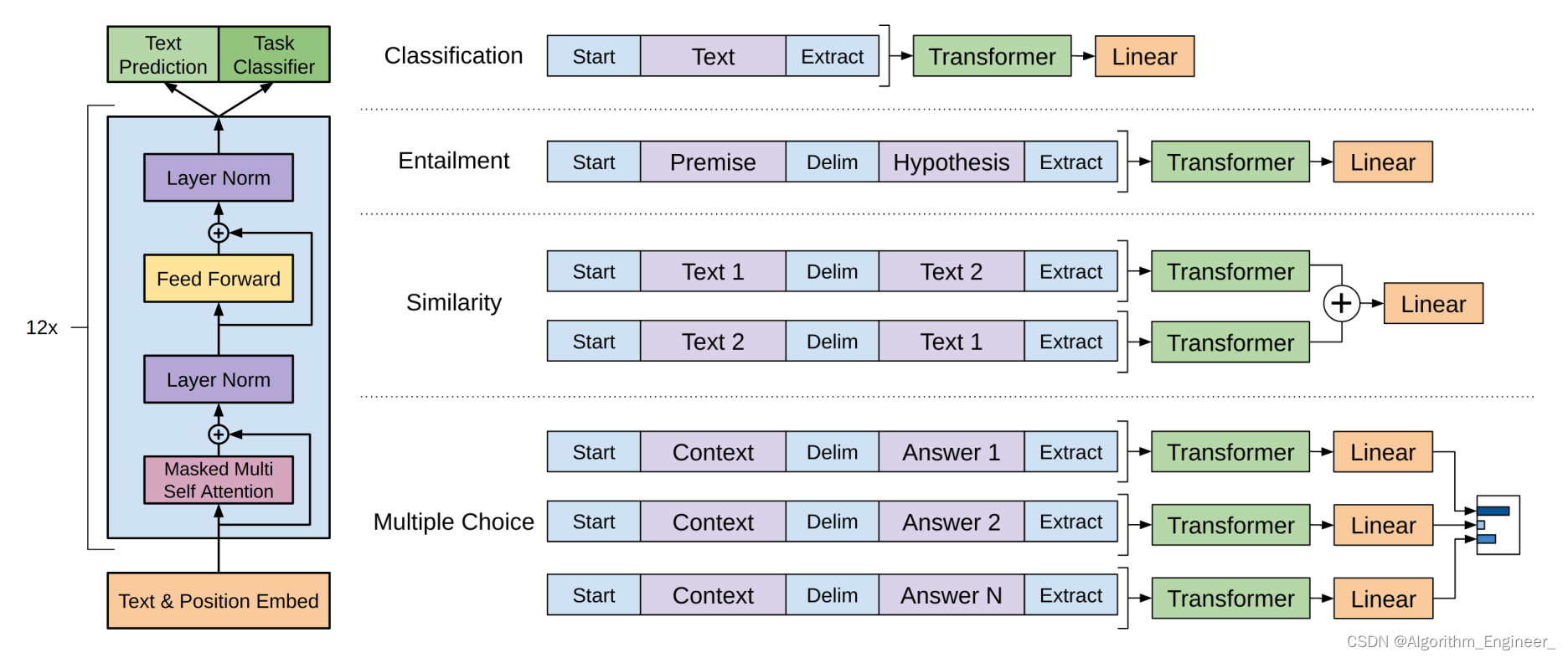
语境化语言表示模型-ELMO、BERT、GPT、XLnet
一.语境化语言表示模型介绍 语境化语言表示模型(Contextualized Language Representation Models)是一类在自然语言处理领域中取得显著成功的模型,其主要特点是能够根据上下文动态地学习词汇和短语的表示。这些模型利用了上下文信息…...

和MATLAB相关的设置断点的快捷键
一个朋友在修改错误的时候,有个操作震惊到我了。 他把迭代次数从1000减小到100,就可以快速仿真完。 废话不多说,直接上快捷键。 F12:设置或者清楚断点。 F5:运行 F10和F11都是步进,但是两者有区别。 …...
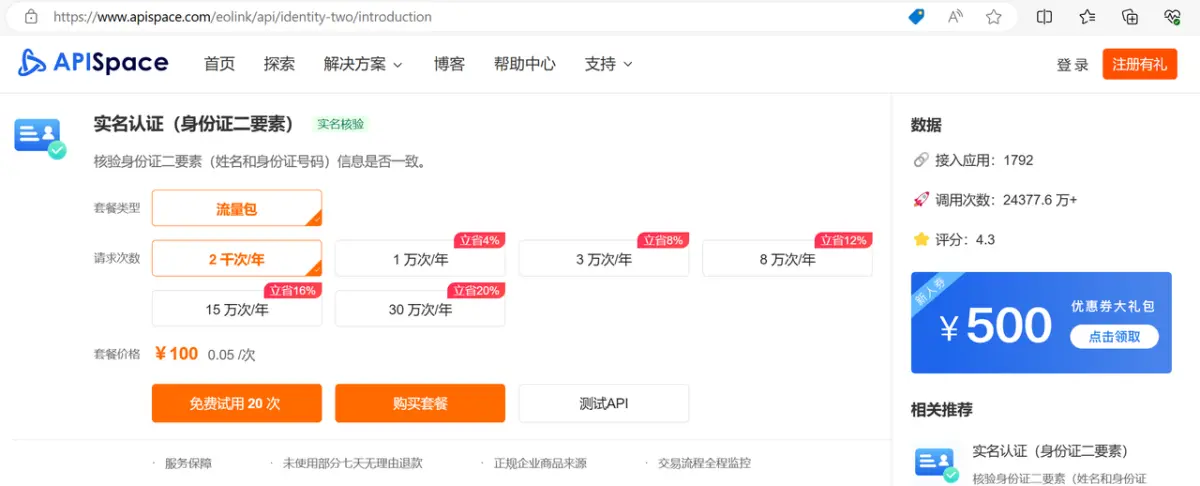
实人认证(人像三要素)API:加强用户身份验证
前言 在当今数字化时代,随着互联网应用的广泛普及,用户身份验证的重要性日益凸显。实人认证(人像三要素)API作为一种新型的身份验证方式,凭借其高效、安全和便捷的特性,正在成为加强用户身份验证的强大工具…...

美易官方:一路火到2024!英伟达还在创造历史
一路火到2024!英伟达还在创造历史:两周来市值增逾千亿美元 自今年8月以来,英伟达的股价一直处于快速上涨的轨道上。最近两周,英伟达的市值更是增加了超过1000亿美元,这主要得益于其数据中心业务的持续强劲表现和游戏业…...

6个免费/商用图片素材网站
推荐6个免费可商用图片素材网站,收藏走一波~ 1、菜鸟图库 https://www.sucai999.com/pic.html?vNTYwNDUx 我推荐过很多次的设计素材网站,除了设计类素材,还有很多自媒体可以用到的高清图片、背景图、插画、视频、音频素材等等。网站提供的图…...
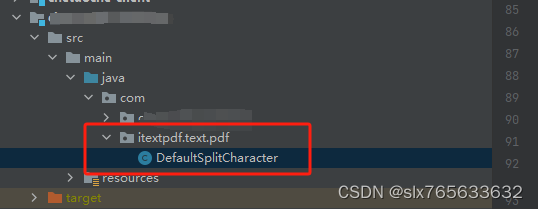
Java使用IText生产PDF时,中文标点符号出现在行首的问题处理
Java使用IText生成PDF时,中文标点符号出现在行首的问题处理 使用itext 5进行html转成pdf时,标点符号出现在某一行的开头 但这种情况下显然不符合中文书写的规则,主要问题出在itext中的DefaultSplitCharacter类,该方法主要用来判断…...

CentOS下载torrent文件的工具aria2的安装
# 下载最新版 (版本号可替换) VERSION"1.37.0" wget https://github.com/aria2/aria2/releases/download/release-${VERSION}/aria2-${VERSION}.tar.gz# 解压并进入目录 tar -zxvf aria2-${VERSION}.tar.gz cd aria2-${VERSION}# 配置、编译和安装 ./configure make …...

Ubuntu20.04 软件和更新故障排查与优化指南
1. 软件源问题排查与修复 遇到Ubuntu20.04软件和更新打不开的情况,十有八九是软件源出了问题。我遇到过最典型的情况就是系统突然提示"无法连接到软件源",或者点击软件更新器后毫无反应。这时候别急着重装系统,跟着我一步步排查。 …...

终极指南:如何用Obsidian PDF++插件将PDF阅读效率提升300%
终极指南:如何用Obsidian PDF插件将PDF阅读效率提升300% 【免费下载链接】obsidian-pdf-plus PDF: the most Obsidian-native PDF annotation & viewing tool ever. Comes with optional Vim keybindings. 项目地址: https://gitcode.com/gh_mirrors/ob/obsid…...

OpenClaw 核心概念关系与配置指南
文章目录🏗️ 一、核心概念关系图🔄 二、核心概念关系详解1. Gateway(网关)- 控制中枢2. Agent(智能体)- 执行单元3. Skills(技能)- 功能模块4. Tools(工具)-…...

实时手机检测-通用GPU算力优化:TensorRT加速后吞吐量提升3.2倍
实时手机检测-通用GPU算力优化:TensorRT加速后吞吐量提升3.2倍 1. 引言:当手机检测遇上性能瓶颈 想象一下,在一个大型活动现场,安保系统需要实时分析数百路监控视频,精准识别出每一部正在使用的手机,以防…...

GLM-OCR辅助Anaconda环境下的数据分析:自动识别图表中的数据标签
GLM-OCR辅助Anaconda环境下的数据分析:自动识别图表中的数据标签 你是不是也遇到过这种情况?从一份PDF报告或者一篇学术论文里,看到一张特别有价值的图表,上面有你想分析的数据趋势。但问题是,这些数据都“锁”在图片…...

Matlab七次非均匀B样条轨迹规划及基于NSGAII的优化方法
matlab-B样条轨迹规划-1 七次非均匀B样条轨迹规划, 基于NSGAII的时间-能量-冲击最优。 换上自己的关节值和时间就能用,简单好用,最近在搞机器人轨迹规划,发现七次非均匀B样条真是个好东西。它不仅能保证轨迹的平滑性,还…...

ESPDateTime:面向ESP32/ESP8266的轻量级NTP时间同步库
1. 项目概述 ESPDateTime 是一款专为 ESP8266 和 ESP32 平台设计的轻量级日期时间管理库,其核心目标并非替代 POSIX time.h 的完整实现,而是解决嵌入式物联网设备在资源受限、无 RTC 硬件备份、网络连接不稳定等现实约束下, 可靠获取、同…...

Limine混合ISO制作教程:BIOS/UEFI双启动镜像的完整流程
Limine混合ISO制作教程:BIOS/UEFI双启动镜像的完整流程 【免费下载链接】limine Modern, advanced, portable, multiprotocol bootloader and boot manager. 项目地址: https://gitcode.com/gh_mirrors/li/limine Limine是一款现代化、先进的可移植多协议引导…...

TVS二极管
TVS引起的两起事故案例1:整机在打ESD静电的时候,出现通信异常。通过排查,最后定位在如下图左边的通信接口处,右边是咱们的主芯片。之所以产品会被打挂,主要原因是TVS布局未靠近接口处放置,TVS放置位置距离接…...